
Blog ·
How to connect a smart lock to a Schlage Encode app
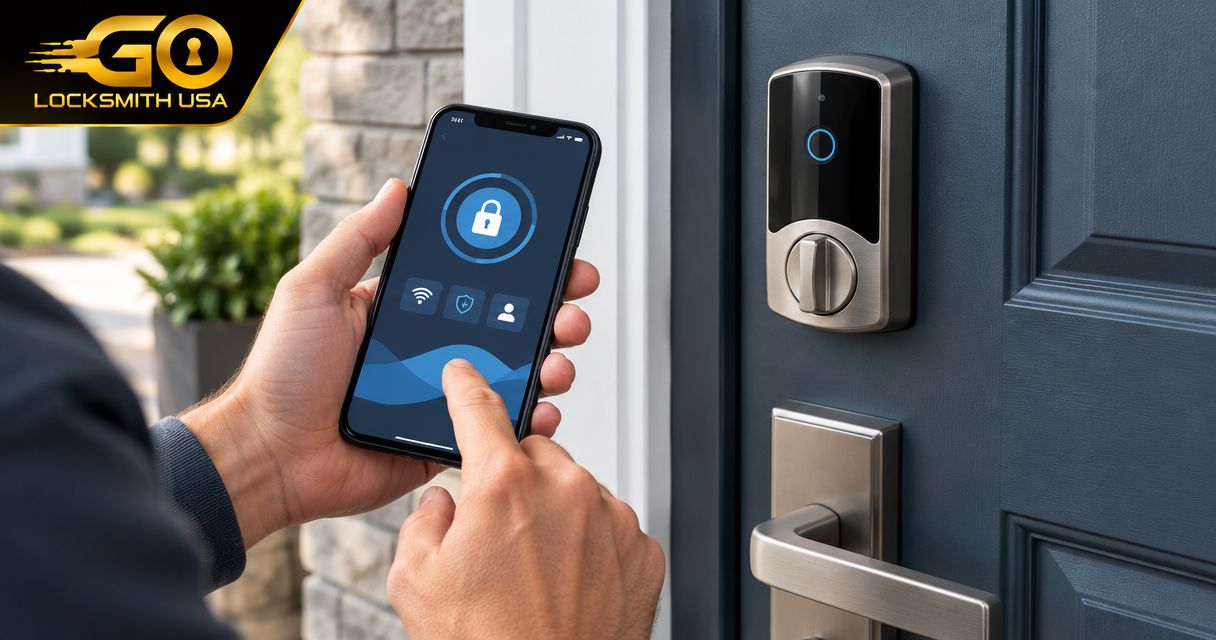
Instead of checking your front door by hand, connect your Schlage Encode to the Schlage Home app so you can check its status and control it from your phone. There is no separate Schlage Encode app, and Schlage Home does not turn an unrelated smart lock into a compatible device.
TL;DR
- To connect smart lock to Schlage Encode app, use Schlage Home and confirm your lock model first.
- Schlage Encode needs a compatible 2.4 GHz Wi-Fi network for remote access.
- Keep the door open during setup, and locate the lock’s setup code before pairing.
- Test nearby operation and remote control separately before relying on the connection.
Why this matters
A successful phone connection and a working door are separate things. An app can communicate with a lock even when the bolt catches against the strike plate, and a keypad can work while remote access is disconnected.
Finish setup by testing both the connection and the physical locking action. That distinction helps you avoid repeating app setup when the actual problem is door alignment.
GO Locksmith is a mobile locksmith service for homeowners who need house lockout assistance, lock repair, replacement, or rekeying. This guide explains the manufacturer-app workflow; it does not establish a smart-lock installation or app-support service.
Before you start
- Confirm the hardware and account access. Check the model information on your lock or its paperwork. Install Schlage Home from your phone’s official app store, and have access to the account that will manage the lock.
- Prepare your phone and network. Turn on Bluetooth, allow the permissions requested for setup, and have your home Wi-Fi name and password ready. Schlage Encode uses 2.4 GHz Wi-Fi; a 5 GHz-only network will not work.
- Find the setup code before pairing. Locate the lock’s QR code and programming information using its instructions; check the interior assembly beneath the battery cover and the supplied documentation. A previously configured lock also needs an ownership check before you reset anything.
Keep the door open and retain a working means of entry throughout setup. Do not put yourself outside with the door closed until you have checked the keypad and physical operation.
If you rent the property or manage it for someone else, confirm permission to change the lock’s account, codes, or network settings. Having physical access to the door does not establish authority to remove another person’s access.
Nearby pairing
The first configuration unit connects Schlage Home to the lock while you are standing beside it. Do not begin by adding voice assistants or other connected-home services; establish the direct manufacturer-app connection first.
- Open Schlage Home, then sign in or create the account that will manage this lock. Use an account you can continue to access rather than a temporary installer’s account.
- Start the add-lock flow using the + control. Follow the prompts for the lock you actually have; do not select another model simply because its picture looks similar.
- Scan the lock’s QR code when the app requests it. Use the alternative code-entry method shown by the app if scanning is unsuccessful.
- Follow the prompts to put the lock into the required setup state. Use the button sequence specified for your model rather than borrowing a reset or pairing sequence from another Schlage product.
- Keep your phone near the interior lock assembly while discovery and pairing finish. Leave Bluetooth enabled and respond to any permission request needed to continue.
Expected result: Schlage Home recognizes the lock and either continues to network setup or displays its controls. A Bluetooth discovery result alone does not prove that remote access works.
App screens change between releases. If the sequence differs, follow the current in-app instructions and the guide for your exact model rather than looking for a button label that your version does not display.
Home Wi-Fi connection
Schlage Encode connects directly to compatible home Wi-Fi for remote functions. You do not need to add a separate smart-home hub just to establish the standard Schlage Home connection.
- Continue into the Wi-Fi portion of the guided setup. If you stopped after pairing, open the lock’s settings and follow the network-connection prompts available there.
- Select your home network. Use a network that provides 2.4 GHz service and reaches the door reliably.
- Enter the Wi-Fi password carefully. The router’s administrator password and the password used to join its wireless network are not necessarily the same.
- Keep the app open while the connection completes. Follow any instructions for finishing setup or installing a lock firmware update, and do not interrupt an update by removing power.
- Give the lock a recognizable name if prompted. A name such as Front Door distinguishes it from another lock without exposing an entry code or account detail.
Expected result: The app finishes network setup without a connection error and shows the lock as connected. Confirm remote operation in the next section rather than treating a completed setup screen as the final test.
A router that broadcasts both 2.4 GHz and 5 GHz under one network name is not automatically incompatible. If setup fails, check the router’s settings and Schlage’s current network guidance before changing the entire home network.
Guest networks that require a browser sign-in or restrict connected devices can complicate setup. Use a suitable home network you control, and do not disable router security as a shortcut.
Connection and door checks
Test each part separately so you know what needs attention if something fails. Keep the door open for the first powered locking cycles and keep fingers clear of the moving bolt.
- Open-door test: Send a lock command from Schlage Home with the door open. Watch the bolt extend, then send an unlock command and confirm that it retracts.
- Closed-door test: Close the door normally and repeat the check while you remain inside. Do not lift, pull, or push the door to disguise resistance.
- Remote test: Once Wi-Fi setup is complete, turn off your phone’s Wi-Fi and Bluetooth temporarily, leaving cellular data enabled. Send a command through Schlage Home and verify the physical result while you remain at the property.
- Entry test: Restore your phone’s normal settings and test an authorized keypad code. Confirm your backup entry method before leaving.
Expected result: The bolt moves freely with the door open and closed, and a command sent over cellular data reaches the lock. Restore Bluetooth afterward if you normally use it.
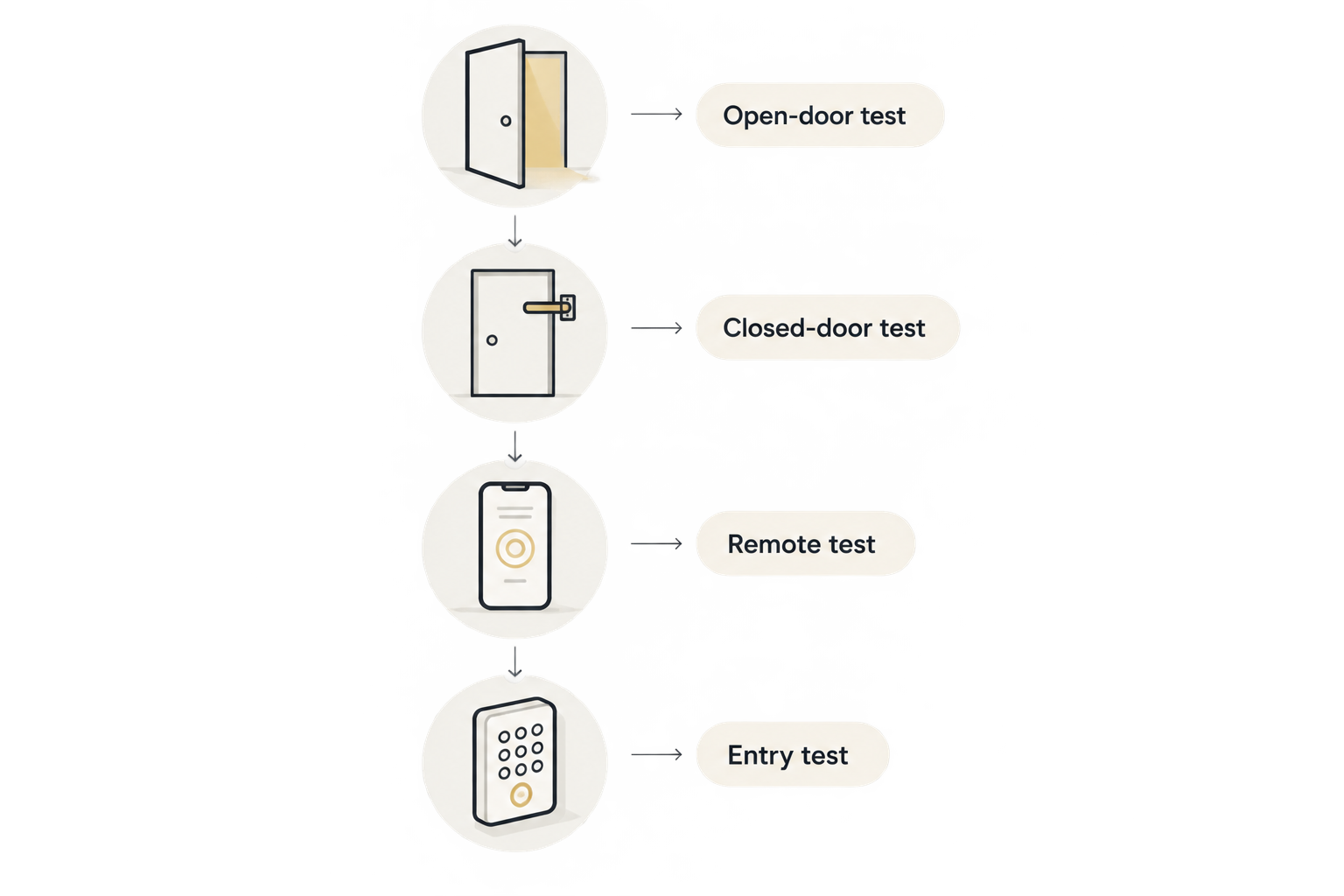
Test the physical door separately from the remote connection.
If the bolt moves freely with the door open but struggles when closed, stop repeated powered attempts. That result points to a physical fit or alignment issue rather than an account-pairing problem.
Do not force the thumbturn or repeatedly run a struggling motor. Record what happens with the door open versus closed so you can describe the symptom clearly when requesting help.
Reconnect after a router or Wi-Fi change
An already paired lock does not need the same treatment as a new lock. If the network name or password changed, update the connection before considering a factory reset.
Stand near the lock with Bluetooth enabled, open its settings in Schlage Home, and follow the available Wi-Fi update or reconnection flow. Select the replacement network and enter its current password, then repeat the cellular-data test.
Updating Wi-Fi is different from erasing ownership and starting over. A factory reset can remove configuration and access codes, so use it only when the exact model’s instructions and your ownership situation call for it.
| Connection workflow | Best for | Advantage | Limitation |
|---|---|---|---|
| Nearby Bluetooth connection | Initial setup and supported nearby control | Connects your phone while you are at the door | Nearby success does not establish remote access |
| Home Wi-Fi connection | Checking and controlling the lock away from home | Supports remote communication through Schlage Home | Depends on the lock’s network connection and home internet |
The connection paths serve different purposes; they are not competing lock products. If the keypad works but remote control fails after a router change, investigate the network connection before changing entry codes or replacing hardware.
Troubleshooting
Schlage Home cannot find the lock
Check that you selected the correct model, enabled Bluetooth, and granted the requested phone permissions. Move beside the interior assembly and follow the model’s pairing instructions again.
Read any app message about an existing account association before proceeding. If the lock belonged to a previous resident or owner, resolve authorized account access rather than repeatedly attempting enrollment.
Pairing works, but Wi-Fi setup fails
Recheck the network name, password, and 2.4 GHz support. Do not assume that entering the password correctly proves the signal reaches the door.
If you use a guest network, mesh network, or unusual router security configuration, consult the router documentation and Schlage’s model-specific support guidance. Avoid changing several network settings at once; you need to know which change resolves the failure.
The keypad works, but remote control does not
A working keypad confirms a local entry function, not an internet connection. Check the lock’s connection status in Schlage Home, confirm that your home internet works, and inspect any low-battery warning.
Repeat the remote test with your phone’s Wi-Fi and Bluetooth off and cellular data on. This prevents nearby communication from hiding a remote-connection problem.
The app sends a command, but the bolt struggles
Compare open-door and closed-door operation. Resistance only when closed calls for a door, strike, or alignment check; trouble in both positions needs further hardware diagnosis.
Changing Wi-Fi settings will not correct a bolt that catches. The guide to repairing or replacing an exterior door lock explains the separate hardware decision without treating every problem as a reason to replace the lock.
The app shows an unexpected lock state
Refresh the lock’s information and observe an actual locking cycle while you are at the door. Do not rely on an old status display as proof that the bolt moved.
Check for connection errors, battery warnings, and unfinished setup prompts. If the mismatch continues, use Schlage support for model-specific diagnosis and record the exact message rather than resetting immediately.
Customize your workflow
Once the basic connection passes, review the access-code and notification settings supported by your model. Give authorized users separate codes where appropriate, remove access that is no longer needed, and avoid putting entry codes in lock names or shared notes.
Make one configuration change at a time and test it before adding another integration. Keeping the direct Schlage Home connection working gives you a clear starting point when diagnosing a later connected-home problem.
For physical lock concerns, GO Locksmith offers confirmed residential services including lock repair, replacement, rekeying, and house lockout assistance. Describe the hardware and symptoms when calling; do not assume that a general locksmith service includes support for your particular app or electronic system.
FAQ
What app do I use to connect a Schlage Encode smart lock?
Use Schlage Home to set up a Schlage Encode smart lock. There is no separate Schlage Encode app; confirm the exact lock model before following its setup prompts.
Can I connect any smart lock to the Schlage Home app?
No. Schlage Home requires supported hardware, so an unrelated smart lock does not become compatible simply because it has Bluetooth or Wi-Fi. Check the manufacturer’s instructions for your exact model.
Does Schlage Encode need 2.4 GHz or 5 GHz Wi-Fi?
Schlage Encode uses 2.4 GHz Wi-Fi for its home-network connection. A 5 GHz-only network is not suitable; check your router’s configuration if the network cannot be found or joined.
Do I need a separate hub to connect Schlage Encode?
A separate smart-home hub is not required for the standard Schlage Encode connection to Schlage Home over compatible Wi-Fi. Optional connected-home integrations have their own compatibility requirements.
Where do I find the Schlage Encode setup code?
Check the lock’s supplied documentation and the labels beneath its interior battery cover, following the instructions for your exact model. Keep programming information private and do not post a photograph of it publicly.
Should I factory reset my lock when I change routers?
Start with the Wi-Fi update or reconnection flow rather than a factory reset. Resetting can remove configuration and access codes, so follow the exact model’s instructions if a reset becomes necessary.
Why does my Schlage Encode work nearby but not away from home?
Nearby operation does not prove the lock has a working remote connection. Check its Wi-Fi status and home internet, then test through cellular data with your phone’s Wi-Fi and Bluetooth temporarily disabled.
One last thing
A connected lock is not proof of a properly secured door. Before relying on remote access, watch the bolt complete a closed-door locking cycle without needing pressure on the door.
For a house lockout or a physical lock repair, replacement, or rekeying question, call GO Locksmith at (239) 412-1101 to check availability. Hours are Sunday–Thursday 7:00 AM–11:00 PM and Friday 7:00 AM–4:00 PM; Saturday is closed. Southwest Florida service areas include Fort Myers, Cape Coral, Lehigh Acres, Estero, Bonita Springs, and Naples.