Blog ·
How to connect a smart lock to Apple HomeKit
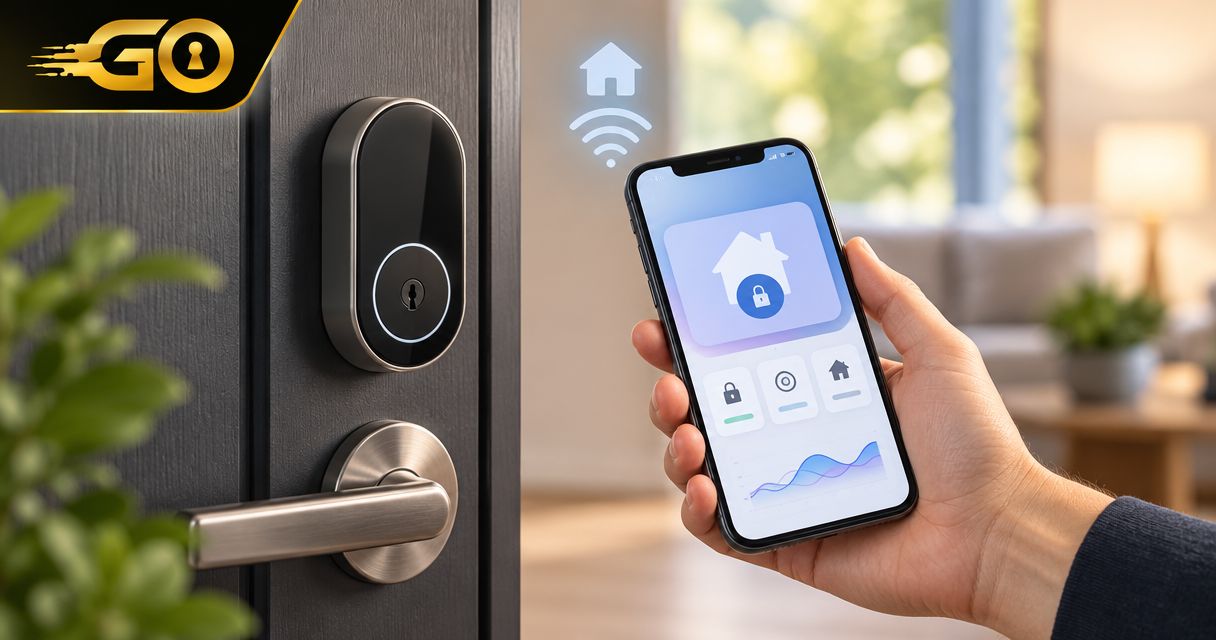
Instead of opening a separate lock app whenever you need to check your door, connect a compatible smart lock to Apple HomeKit through the Home app’s Add Accessory setup. You’ll need the correct pairing code, permission to add accessories to your Apple home, and any hub or bridge required by your exact lock model.
TL;DR
- To connect smart lock to Apple HomeKit, confirm Apple Home compatibility before scanning the accessory’s setup code.
- Apple Home supports compatible HomeKit and Matter locks; Bluetooth or Wi-Fi alone does not establish compatibility.
- Remote access requires a suitable Apple home hub; Matter-over-Thread locks also need a compatible Thread border router.
- Test the deadbolt with the door open before relying on app control or scheduled locking.
Why this matters
A smart lock can work in its manufacturer’s app without working in Apple Home. Pairing with your iPhone over Bluetooth is not the same as adding the lock to HomeKit, and connecting it to Wi-Fi does not automatically make it compatible.
Apple Home brings compatible accessories into one place, but it does not fix a sticking bolt or change an incompatible lock into a supported model. Separate the physical lock check from the software setup.
GO Locksmith provides mobile residential lock repair, replacement, and rekeying for homeowners. That is a different scope from configuring an Apple account or troubleshooting a manufacturer’s integration; confirm the specific work you need before requesting service.
Before you start
- Gather access and setup materials. Have your iPhone, access to the correct Apple home, the lock’s exact model information, its HomeKit or Matter setup code, and the manufacturer’s instructions. Update the phone and any required manufacturer app before pairing.
- Check the connection requirements. Determine whether your lock connects directly through HomeKit, uses Matter, or requires a manufacturer bridge. For remote access, check that your Apple home has a supported home hub. Matter-over-Thread also requires a compatible Thread border router; some Apple home hubs perform both roles.
- Check for previous ownership. A used or previously paired lock can remain associated with another home or ecosystem. Follow the manufacturer’s removal or reset instructions, and preserve an authorized way inside before changing anything. A reset can erase settings you still need.
Keep the door open during initial testing. Have your physical key or another confirmed entry method with you, and do not share photographs of setup codes publicly.
Confirm compatibility
Identify the exact integration route
- Find the model designation on the lock, packaging, purchase documentation, or manufacturer app. Check the manufacturer’s documentation for that specific version, not just the product family.
- Look for explicit support for Apple Home, Apple HomeKit, or Matter. Check whether that support requires a separate bridge, a firmware update, or additional hardware.
- Locate the correct setup code. A manufacturer’s serial-number QR code is not necessarily the code Apple Home needs.
- If the lock already belongs to another smart-home platform, identify whether the manufacturer supports sharing it through Matter. Do not factory-reset a working lock simply because you cannot find its original code.
Expected result: You know which supported route your lock uses and have its pairing instructions. If Apple Home compatibility is absent, stop here rather than repeatedly attempting discovery.
| Connection route | Best for | What it provides | Limitation to check |
|---|---|---|---|
| Native HomeKit | Owners of a lock explicitly supporting HomeKit | Pairing through Apple Home using the supported setup process | Remote operation depends on a suitable home hub and the lock’s connection requirements |
| Matter | Owners of a Matter-compatible lock supported by Apple Home | A supported route into Apple Home, including sharing from another ecosystem when supported | Matter-over-Thread requires a compatible Thread border router |
| Manufacturer bridge | Owners whose lock documentation requires a bridge for Apple Home | A supported connection through the specified bridge | A generic bridge does not make an unsupported lock compatible |
These are connection routes, not interchangeable settings. Use the route documented for your lock. Buying an unrelated hub or choosing a similarly named accessory in the Home app will not establish compatibility.
Check the door before pairing
With the door open, operate the lock using its normal manual control. The bolt should move without forcing it; then check whether it meets resistance when the door is closed.
Resistance only with the door closed points toward a door or strike-alignment issue rather than an Apple Home problem. Do not use repeated motorized locking attempts to overcome binding, and do not alter hardware unless you understand the door assembly and installation requirements.
Add the lock
Pair a supported accessory in Apple Home
The standard Apple Home sequence below applies to supported accessories. A manufacturer-required bridge or commissioning step comes first when the lock’s instructions specify one; exact prompts can differ by accessory and software version.
- Put the lock or required bridge into pairing mode using its manufacturer’s instructions. Keep your iPhone nearby and enable Bluetooth.
- Open Home on your iPhone. Confirm that you are working in the home where the lock belongs.
- Tap Add, then Add Accessory.
- Scan the HomeKit or Matter setup code. If scanning fails, tap More options and use the available manual setup route with the correct code.
- Select the accessory when it appears and follow the prompts to add it. Complete any manufacturer-specific steps rather than substituting instructions for another model.
- Assign the lock to the correct room and give it a distinctive name, such as Front Door. Complete the remaining prompts.
Expected result: The lock appears in the intended home and room. Opening its controls shows a lock state rather than an unfinished setup request.
Handle a lock already connected elsewhere
If a Matter lock already works in another ecosystem, use that ecosystem’s supported accessory-sharing process to generate a new pairing code. Then add it in Apple Home through Add Accessory.
The original printed code is not a substitute for opening a new Matter pairing window when the existing platform requires one. Follow the lock manufacturer’s multi-platform instructions, especially when another household member already manages it.
For a HomeKit lock assigned to an old Apple home, follow the documented removal and reset procedure instead. Do not assume a factory reset is the first troubleshooting step: it can remove existing access settings and create more work.
Test access
Verify operation before closing the door
- Leave the door open and open the lock’s controls in Home. Send a lock command, then an unlock command, while watching the bolt.
- Confirm that the displayed state agrees with the physical mechanism. If the app reports a different state, stop and follow the manufacturer’s calibration or troubleshooting instructions.
- Close the door only after open-door operation works. With an authorized backup entry method available, verify that the bolt enters the strike without binding.
- If you need remote access, open Home Settings, then Home Hubs & Bridges, and check the home hub’s status. Confirm that your hub and network meet the lock’s requirements.
- Test away-from-home control separately. With another authorized entry method available, turn off your iPhone’s Wi-Fi and check the lock over cellular data.
Expected result: The lock responds locally, its reported state matches the door, and remote control works if you have configured the required hub and network.
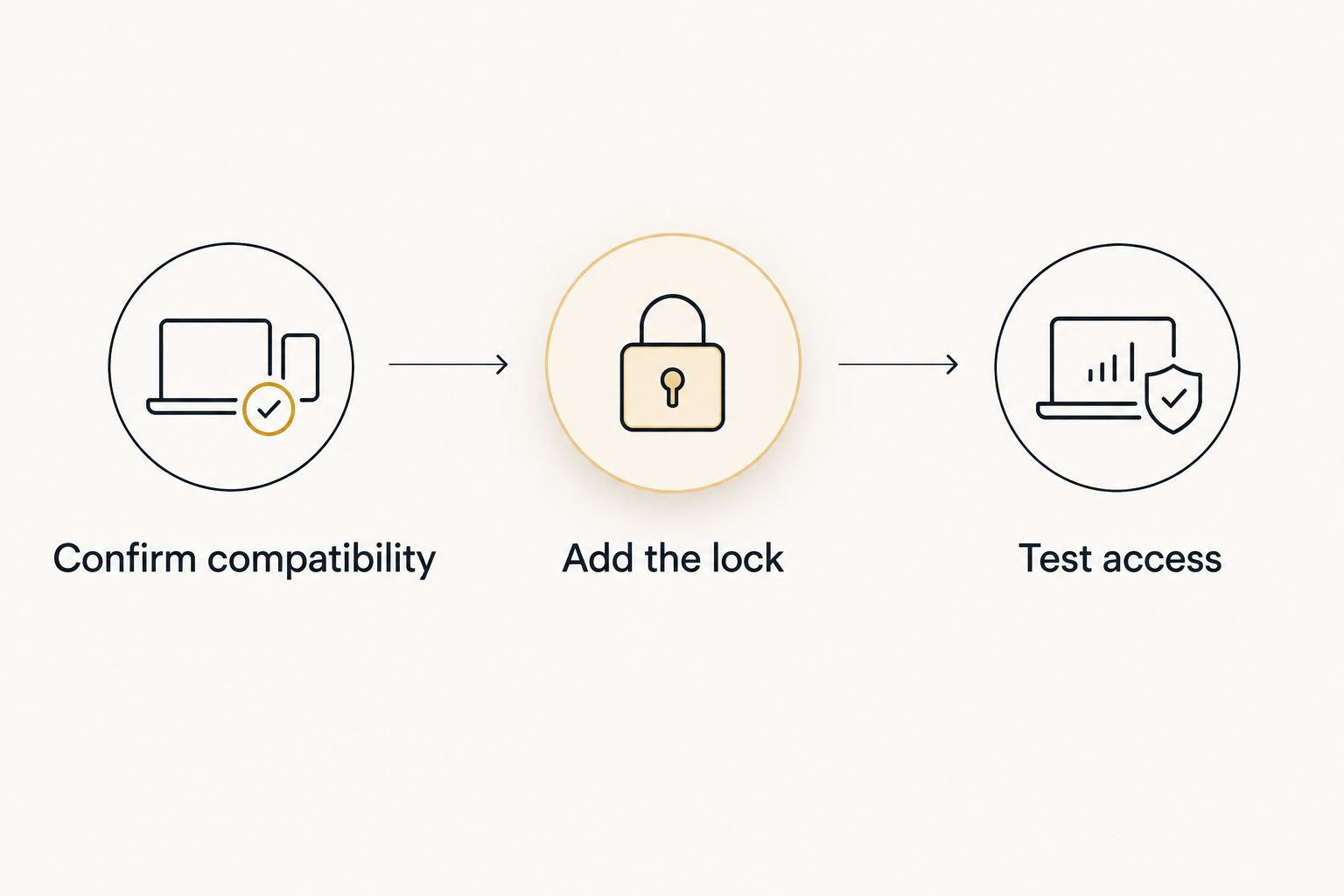
Successful pairing is only part of setup; verify physical operation and remote access separately.
Being able to control a lock while standing beside it does not prove that remote access works. Keep those tests separate so you can identify whether a failure concerns the lock, its local connection, or the home hub.
Second workflow: lock the door on a schedule
Once manual control works, you can create a time-based locking automation in Apple Home. Use scheduled locking as a backup routine, not proof that the door is physically closed. A lock command cannot close an open door.
- Open Home, select Automation, and tap Add. Choose Add Automation if that option appears.
- Select A Time of Day Occurs. Set the time and days appropriate for your household, then tap Next.
- Select the intended lock and tap Next. Configure its action to lock, not unlock.
- Review the selected door, action, and schedule before saving with Done. Test the routine while someone can observe the door.
Expected result: The saved automation targets the correct lock and requests locking at the selected time. Check its operation rather than assuming that saving it proves it will run successfully.
Keep the limitation clear: an extended bolt does not establish that the door is seated in its frame. Door-position reporting is a separate capability that depends on the hardware. Do not assume your lock includes it, and do not create an unattended unlocking routine as a substitute for deliberate access sharing.
Troubleshooting
The lock never appears during setup
Confirm compatibility and pairing mode first. Move your iPhone near the accessory, check Bluetooth, and verify that you are scanning the setup code rather than a serial-number label.
If the documented route uses a bridge, complete that bridge’s setup first. Repeatedly scanning the lock itself will not replace the required connection path.
Apple Home says the accessory is already added
Check your other Apple homes and ask the previous authorized administrator whether the lock remains assigned there. For a Matter accessory connected elsewhere, use the existing platform’s supported sharing process.
Reset only when the manufacturer’s instructions call for it and you are authorized to manage the lock. Record the existing access arrangements before removing them.
The lock works nearby but shows No Response remotely
Check Home Hubs & Bridges and confirm that the home hub is connected. Then check the connection path required by the lock, including any manufacturer bridge or Thread border router.
Avoid treating a router, home hub, and Thread border router as equivalent devices. Their roles differ, even when one physical device performs more than one role.
The motor runs, but the bolt does not complete its travel
Test with the door open. If open-door operation works but closed-door operation binds, address alignment or mechanical resistance rather than repeating app setup.
Check battery condition and the manufacturer’s calibration instructions as well. Do not force the bolt or assume a motor sound means the door is secured.
Pairing works, but Apple home key does not appear
Apple Home compatibility does not automatically include Apple home key. Check the exact lock’s documented home key support and the requirements for your iPhone or Apple Watch.
Adding a lock to the Home app and adding a supported home key to Wallet are related but distinct features. Re-pairing an unsupported model will not add that capability.
Customize your workflow
Start with clear room assignments and lock names, then decide who genuinely needs control. Use Apple Home’s supported sharing features for household access; manufacturer keypad codes and their management remain model-dependent.
If you manage showings, read the guide to smart locks for real estate agents and showings before building an access routine around a lock. HomeKit pairing alone does not establish support for temporary codes or showing-schedule integrations.
For physical lock trouble, GO Locksmith serves Fort Myers, Cape Coral, Lehigh Acres, Estero, Bonita Springs, and Naples. Call (239) 412-1101 to discuss residential lock repair, replacement, or rekeying and confirm the requested work.
FAQ
Can I connect any smart lock to Apple HomeKit?
No. The exact lock must support Apple Home through HomeKit, Matter, or a documented compatible bridge. Wi-Fi and Bluetooth connectivity alone do not establish that support.
Do I need an Apple home hub to connect a smart lock?
The requirement depends on the lock and connection route. Remote access requires a suitable home hub, and Matter-over-Thread requires a compatible Thread border router; check the exact model’s setup requirements before pairing.
Where do I find my smart lock’s HomeKit setup code?
Check the locations identified in the manufacturer’s instructions, such as the accessory label, setup card, or manufacturer app. A serial-number QR code is not necessarily a HomeKit or Matter pairing code.
Can I add a Matter lock that already works with another platform?
Yes, when the lock and existing platform support Matter sharing. Generate a new pairing code through the existing platform’s supported process, then add the accessory in Apple Home.
Does connecting a lock to Apple Home give me Apple home key?
No. Apple home key requires explicit support from the exact lock model and compatible Apple devices. A lock appearing in Home does not prove it supports a key in Wallet.
Why does my smart lock work nearby but not away from home?
Check the home hub and the lock’s required connection path first. Nearby operation does not verify remote access, so test cellular control separately after confirming the hub is connected.
Should I reset my smart lock if pairing fails?
Do not reset it before checking compatibility, pairing mode, the setup code, and existing ownership. A factory reset can erase settings; follow the manufacturer’s instructions and retain an authorized way inside.
One last thing
A smart lock can report locked while the door is open. Unless your particular setup includes supported door-position sensing, the app’s lock state is not proof that the doorway is secured.
Make your final check physical: close the door, confirm full bolt travel, and verify your backup entry method. If the bolt binds or the existing lock needs attention, call GO Locksmith at (239) 412-1101 to discuss the mechanical work and check availability during business hours.