
Blog ·
How to connect a smart lock to a Yale Access app
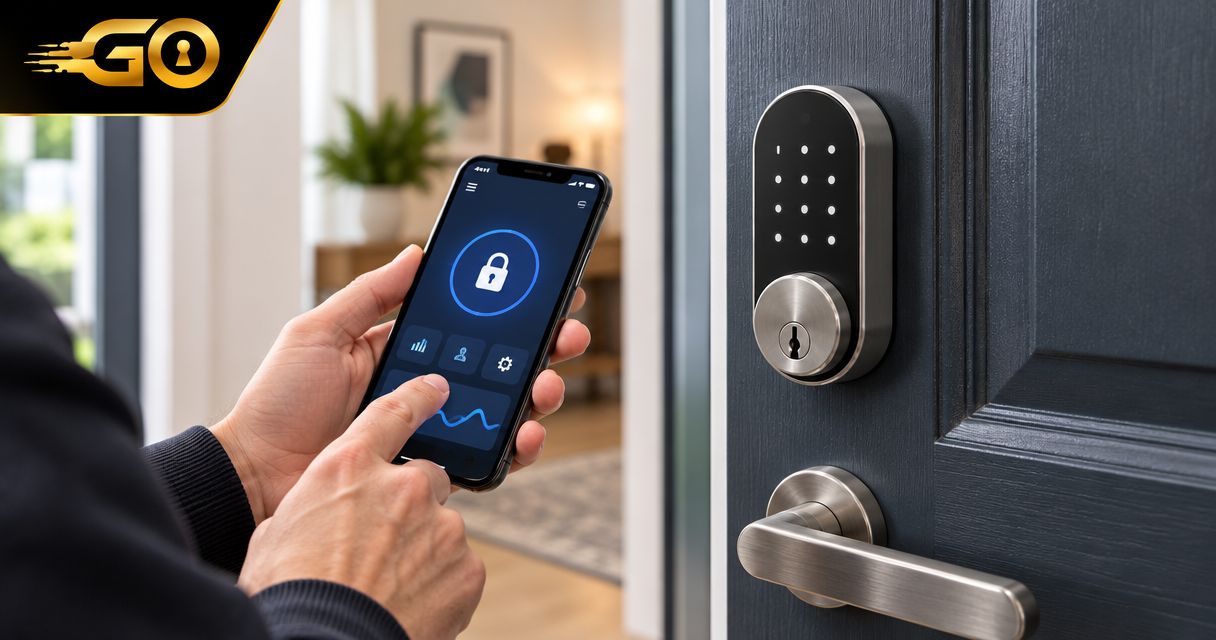
Instead of walking to the door whenever you need to change its lock state, connect a compatible smart lock to Yale Access for phone control; start by confirming that Yale Access is the app specified for your exact model and region. Then add the lock, complete its calibration, and test nearby control before setting up remote access.
TL;DR
- To connect smart lock to Yale Access app, confirm model compatibility before scanning the lock’s setup code.
- Yale Access Bluetooth control and remote access are separate setup stages; pairing alone does not establish remote control.
- Keep the door open during initial testing and follow the lock’s model-specific calibration instructions.
- GO Locksmith handles confirmed physical lock services; Yale account recovery belongs with Yale support.
Why this matters
A phone app cannot make an incompatible lock compatible, and a successful pairing does not prove that the deadbolt moves freely. Treat compatibility, account ownership, mechanical operation, and connectivity as separate checks. That makes a failed setup easier to diagnose.
GO Locksmith provides mobile locksmith service for homeowners who need help with a physical lock. For Yale account access, device ownership disputes, or app-specific errors, use Yale’s support process rather than assuming a locksmith can change the account.
Start with the model number, not the Yale logo. Yale sells different lock families, and the correct app and connection method depend on the hardware and market.
Before you start
- Confirm the lock, app, and authorization. Find the exact model and its setup instructions. Confirm that those instructions specify Yale Access, and have permission from the property owner to enroll or change the lock. A Yale-branded lock is not automatically compatible with this app.
- Prepare your phone and setup materials. Have access to the account you intend to use, the lock’s setup code, working batteries of the specified type, and Bluetooth enabled. Allow the permissions requested for device discovery as directed by your phone and Yale’s instructions.
- Check for an existing owner before resetting anything. A previously installed lock can remain associated with another account. Obtain the current owner’s cooperation or contact Yale support; a hardware reset is not a substitute for resolving account ownership.
Keep an independent way back inside wherever the hardware provides one. Do not make your first test from outside with the door closed and your only working entry method inside.
Account and compatibility setup
- Identify the exact hardware. Read the model information on the lock or its documentation. If the product uses a separate connectivity module, identify that module too; the exterior keypad alone does not establish app compatibility.
- Follow the app named in the model’s instructions. If the instructions direct you to a different Yale app, stop following Yale Access menu steps. Do not choose an app solely because its name resembles the lock’s branding.
- Create or sign in to your account. Use an email address and phone number you control, and complete the verification requested by the app. For a shared property, agree on the authorized account owner before enrolling the hardware.
- Prepare nearby discovery. Enable Bluetooth and grant the permissions the app requests for setup. Stay beside the lock rather than trying to discover it from another room.
Expected result: You are signed into the correct app with the permissions needed to begin device enrollment. If the model instructions name another app, resolving that mismatch is the next step—not repeated pairing attempts.
Lock enrollment
- Open the device setup flow. In Yale Access, open the menu and select Set Up a Device. If that label is absent, confirm the app and consult its current instructions rather than selecting an unrelated integration.
- Scan the lock’s setup code. Use the code identified in the model’s documentation. Scan the device setup code, not a retailer barcode or a code belonging to a separate accessory.
- Follow the hardware prompts. Complete the on-screen instructions for your specific lock. Do not use a generic button-hold sequence from another model; reset and pairing procedures are not interchangeable.
- Assign the lock to the appropriate home. Use a recognizable door name when the app asks you to organize the device. Distinguish the front entrance from another door before adding more devices.
- Complete any required update. If setup requests a firmware update, follow its power and proximity instructions. Avoid interrupting the process or removing batteries unless Yale’s instructions direct you to do so.
Expected result: The enrolled lock appears in the intended home under a recognizable name. Seeing the device is a pairing milestone, not confirmation that remote control or every optional feature works.
If the app reports an existing owner, stop here. Reinstalling the app or opening another account does not establish your authority to take over the lock.
Calibration and entry testing
- Check manual movement first. With the door open, operate the thumbturn according to the hardware instructions. Stop if the bolt binds or the mechanism requires force.
- Complete the guided calibration. Follow the app’s calibration prompts for your model. Where a door-position sensor is included, follow its separate placement and setup instructions rather than assuming lock calibration also configures that sensor.
- Test nearby phone control with the door open. Command the lock to lock and unlock while standing beside it. Watch the bolt move; do not rely only on a changing app icon.
- Check operation with the door closed. Keep a working entry method accessible and someone able to reopen the door. Confirm that the bolt enters the strike without pushing, lifting, or pulling the door into position.
- Verify the displayed state. Compare what the app reports with the physical lock. If the state is wrong, revisit calibration and any model-specific sensor setup before enabling automatic behavior.
Expected result: The bolt moves freely, nearby app commands operate the lock, and the displayed lock state matches the hardware. Door-open status is a separate feature and depends on the model and any required sensor.
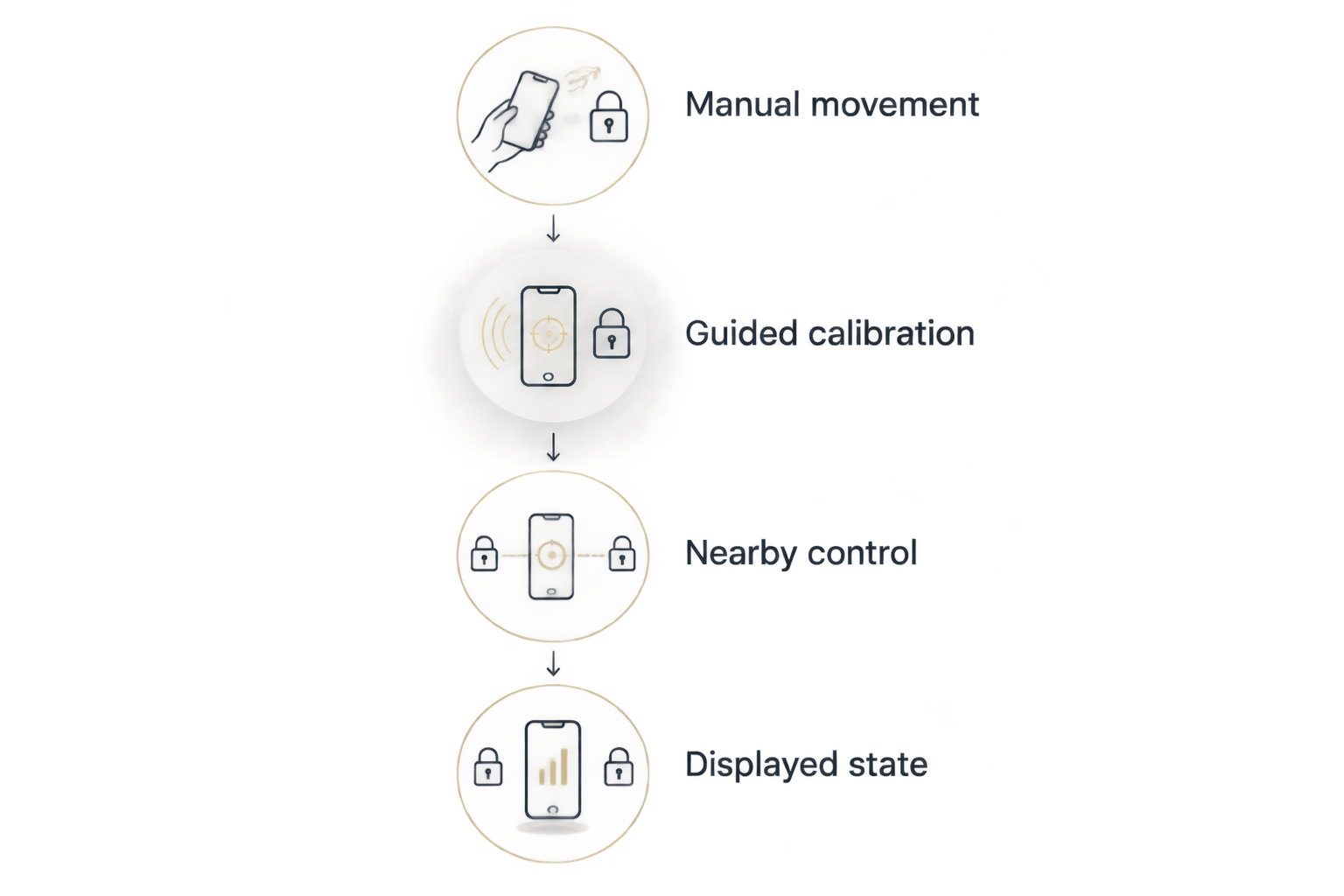
Confirm physical movement before relying on the app’s lock-state display.
A bolt that works with the door open but binds when closed points to a physical fit issue rather than simply a pairing problem. Do not repeatedly run the motor against resistance. The distinction between repairing and replacing an exterior door lock matters when the hardware itself is not operating correctly.
Add remote control after nearby control works
Nearby Bluetooth operation and control from away from home are different workflows. Establish the local connection first so you can separate a lock problem from a home-network problem.
| Connection workflow | Best for | Advantage | Limitation |
|---|---|---|---|
| Nearby Bluetooth control | Testing and operating a compatible lock while beside it | Lets you verify enrollment and physical operation locally | Does not establish control from away from home |
| Supported internet connection | Authorized users who need control away from the property | Extends control beyond nearby Bluetooth range when correctly configured | Requires the model’s supported network hardware and a working internet connection |
For remote access, identify the connection method supported by your exact model. Some compatible configurations use a separate bridge; others use supported built-in connectivity. Do not assume that a lock has Wi-Fi because the app can discover it over Bluetooth.
- Confirm the required network hardware in the lock’s documentation.
- Complete the bridge or built-in network setup using its own instructions.
- Follow the specified wireless-band and router requirements rather than guessing.
- Leave Bluetooth range and test using your phone’s cellular connection, with a backup entry method still accessible.
The steps to connect your smart lock to Wi-Fi depend on whether the lock connects directly or uses a bridge; Bluetooth enrollment alone does not complete either network setup. Keep the model’s documentation in control of accessory selection and network settings.
Expected result: An authorized command works when your phone is no longer communicating with the lock over nearby Bluetooth. An online indicator alone is not as useful as a controlled, observed test.
Use an existing lock from another authorized phone
A household member joining an installed lock should normally use the owner’s invitation process rather than set up the hardware as a new device. This preserves the existing configuration and avoids an unnecessary reset.
- Ask the current owner to invite the intended user through the app’s guest-management flow.
- Accept the invitation using the account details specified in that invitation.
- Confirm that the correct home and door appear.
- Test access while the owner is present, before depending on the new phone for entry.
Expected result: The additional user sees the intended lock with the permissions assigned by the owner. An invitation grants account access; it does not change the lock’s connectivity hardware or guarantee every feature for that user.
Use the least access needed. Someone who only needs entry does not automatically need authority to change other users or device settings.
Troubleshooting: fix the failed stage
The app cannot find the lock
Confirm the exact model and required app first. Then check batteries, Bluetooth, requested discovery permissions, and phone proximity. Follow the model’s instructions for entering setup mode; avoid trying reset sequences taken from unrelated locks.
The lock belongs to another account
Ask the existing owner to follow Yale’s ownership-removal or transfer process. If that person is unavailable, contact Yale support about the required next steps. Do not assume a factory reset removes an account association.
Pairing works, but remote commands fail
Test nearby control again. If that works, inspect the supported bridge or built-in network connection, router connectivity, and the network requirements for that hardware. Re-enrolling a working Bluetooth lock is not the first fix for a separate internet connection failure.
The motor runs, but the bolt stalls
Stop repeated powered attempts and check manual operation with the door open. If the bolt moves freely only when open, inspect how it meets the strike. GO Locksmith offers residential lock repair, replacement, and rekey services; describe the physical symptom when requesting help rather than assuming the account needs resetting.
The app reports the wrong state
Repeat the model’s calibration process and check any required door-position sensor setup. A locked bolt and a closed door are different conditions. Do not use a door-status feature until its reading matches an observed test.
Customize your workflow without losing control
Keep automatic features off until ordinary locking and unlocking work reliably. If your model supports automatic locking, review its conditions and test them with backup access available. Do not assume an app command confirms that a door has physically closed.
Review user access when someone moves out, changes responsibilities, or no longer needs entry. Remove obsolete app permissions, but remember that deleting app access does not invalidate a physical key. A change of occupants can require a separate decision about the mechanical cylinder.
For physical lock problems in Fort Myers, Cape Coral, Lehigh Acres, Estero, Bonita Springs, or Naples, describe the lock and symptoms through the contact page. Keep app account recovery and hardware service requests separate so the right issue gets addressed.
FAQ
Can I connect any Yale smart lock to Yale Access?
No. Confirm that the exact lock model and its regional instructions specify Yale Access. The Yale name alone does not establish app compatibility.
Why can’t Yale Access find my smart lock?
Check the required app, batteries, Bluetooth, discovery permissions, and proximity to the lock. Then follow the exact model’s setup-mode instructions rather than using another lock’s reset procedure.
Do I need Wi-Fi to connect a lock to Yale Access?
Nearby Bluetooth enrollment and remote internet control are separate connection stages. Your phone needs the connectivity required for account setup, while remote lock control needs the network hardware and connection specified for the model.
How do I connect a Yale lock that the previous owner installed?
Resolve the existing ownership association before trying to enroll it under your account. Ask the previous owner to follow Yale’s transfer or removal process, or contact Yale support if that person is unavailable.
Why does my Yale lock work nearby but not away from home?
Nearby operation can use Bluetooth without proving that the remote connection works. Check the supported bridge or built-in network connection and test again outside Bluetooth range.
Should I reset my Yale lock when I get a new phone?
Do not reset a working lock simply because you changed phones. Start by signing into the existing authorized account and checking permissions; use Yale’s account-recovery process if you cannot sign in.
Can GO Locksmith recover my Yale Access account?
Yale account recovery belongs with Yale support. GO Locksmith provides confirmed mobile locksmith services, including house lockouts and residential lock repair, replacement, and rekeying; those services do not establish app-account recovery capability.
One last thing
App access and physical-key access are separate. Removing someone from an app does not change a mechanical key they still possess. When a property changes hands, review both—not just the list of phones connected to the lock.
For a physical lock problem, call (239) 412-1101 to check service availability. Hours are Sunday–Thursday 7:00 AM–11:00 PM and Friday 7:00 AM–4:00 PM; Saturday is closed.