
Blog ·
Automatically relock your front door when you leave home
Instead of checking your front door from the driveway, set a compatible smart lock to lock when the last household member leaves home. Use a departure automation, confirm that the door closes properly, and test the routine with a backup way inside before relying on it.
TL;DR
- For smart lock auto relock when you leave, use a last-person departure trigger rather than your phone alone.
- Apple Home supports departure automations for compatible accessories; check the lock and home hub requirements first.
- A locked status does not prove the door is shut unless your system separately monitors door position.
- GO Locksmith handles residential lockouts, rekeys, and lock repair; this guide does not establish automation setup services.
Why the departure trigger matters
Locking when you leave and relocking after an unlock are different workflows. A departure automation responds to household location. A timed relock responds to the lock being unlocked, whether anyone leaves or not.
The distinction matters when someone stays home, steps outside without a phone, or leaves the front door open while carrying things. An automation needs a clear trigger, a supported locking action, and a way for you to confirm the result.
GO Locksmith provides mobile residential locksmith services for Southwest Florida homeowners who need lockout assistance, rekeying, or lock repair. Software automation cannot correct a binding deadbolt or a door that will not latch.
Before you start
- Confirm the equipment and account access. For the Apple Home example below, you need a compatible lock already added to your home, permission to create automations, and a supported home hub configured for home automations. Follow the accessory manufacturer's requirements for any bridge or connection equipment.
- Prepare household location sharing and backup entry. Each participating resident needs the appropriate home membership and location settings. Keep an authorized backup entry method outside the door during testing; do not assume every lock has a physical key override.
- Check the non-obvious problem: door position. A lock can extend its bolt while the door is open. Unless the setup separately detects whether the door is closed, departure does not establish that the doorway is secured.
The steps below use Apple Home as a concrete example, not as a compatibility promise for your lock. If the required trigger or accessory action is missing, stop and check the manufacturer's documentation instead of selecting a similar-looking setting.
Choose the workflow before changing settings
Use last-person departure when your goal is to secure the home after everyone leaves. Choose timed relock only when you want the door to relock after each unlock, including while people remain home.
| Workflow | Best for | What starts it | Advantage | Limitation |
|---|---|---|---|---|
| Last-person departure | Households with participating residents | The final tracked resident leaves | Matches a household departure rather than one person's trip | Depends on correct household membership and location reporting |
| Individual departure | A single-resident home | One selected person leaves | Connects the routine to that resident's departure | Does not account for untracked occupants or guests |
| Timed relock | Relocking after routine entry | An unlock followed by the configured delay | Does not require a departure event when implemented locally by the lock | Can relock while someone is outside without an entry method |
These workflows do not close the door. They also do not establish that a visitor, caregiver, or child has left unless your setup actually accounts for that person.
Avoid enabling several overlapping routines during setup. A departure rule and a separate relock timer make troubleshooting harder because either can explain why the bolt moved.
Household and lock configuration
Check compatibility and physical operation
- Open the lock's own app and confirm that the correct front-door accessory responds to a manual lock command. Resolve connection or battery warnings before adding an automation.
- With the door open, check that the bolt extends and retracts normally. Keep fingers clear of the mechanism and follow the manufacturer's operating instructions.
- Close the door and operate the lock again. Check whether the bolt moves without pushing, pulling, or lifting the door.
- Open the Apple Home app and confirm that the same lock appears in the correct home. Give it an unmistakable name if several doors have similar labels.
- Confirm that the home hub and accessory connection meet the current Apple and lock-manufacturer requirements. Being able to control a lock nearby does not, by itself, prove that unattended automation will work.
Expected result: The correct front-door lock works mechanically and responds through the system that will run the departure routine.
Do not use repeated motor attempts to compensate for a misaligned door. If the bolt catches, correct the physical problem before treating any software result as a successful test.
Departure trigger configuration
Choose departure for the household
- In Apple Home, open Automation and select Add Automation. If automations already exist, use the + control to add another.
- Select People Leave. This is the departure trigger, not an arrival event or a time-of-day schedule.
- Open the people selection and choose The Last Person Leaves for a household departure routine. Review which residents participate in location-based automations.
- Verify that the event uses your home location. A misplaced home boundary creates the wrong departure event even if the rest of the routine is correct.
- Leave time restrictions off unless you deliberately want the routine limited to part of the day. Select Next to choose the action.
Expected result: The trigger represents the last participating resident leaving the home, rather than one resident leaving while another remains.
Location tracking is not occupancy detection. A guest without home access will not automatically become a tracked household member. Someone who leaves their phone behind also changes what the routine can infer.
Before proceeding, tell everyone who uses the door what will happen. A technically correct routine is still unsuitable if a household member regularly goes outside without a key, phone, or other supported entry method.
Lock action and verification
Set locking, then test safely
- Select only the intended front-door lock and choose Next. Avoid adding unrelated accessories until the core routine works.
- Open the lock's action control and set its target state to locked. Check the state shown in the automation; selecting an accessory alone does not establish the intended action.
- Review the trigger and target together, then select Done. The routine should describe departure followed by locking, not departure followed by unlocking.
- Test the locking action while you retain an authorized way inside. Keep the door shut for the test and confirm that the bolt seats in the strike.
- Test a real departure with the participating household members. Check the reported lock state after the event, then verify the physical result when you return.
- Test the household exception: have one tracked resident remain home while another leaves. Confirm that the last-person routine does not behave like an individual-departure rule.
Expected result: The lock secures the closed door after the intended departure, and one resident leaving does not trigger a routine intended for an empty home.
The setup sequence is simple, but each check answers a different question:
- Check compatibility: Can the system operate this lock?
- Choose departure: Does the trigger represent the right people?
- Set locking: Is the action actually a lock command?
- Test safely: Does the physical door end up secured?
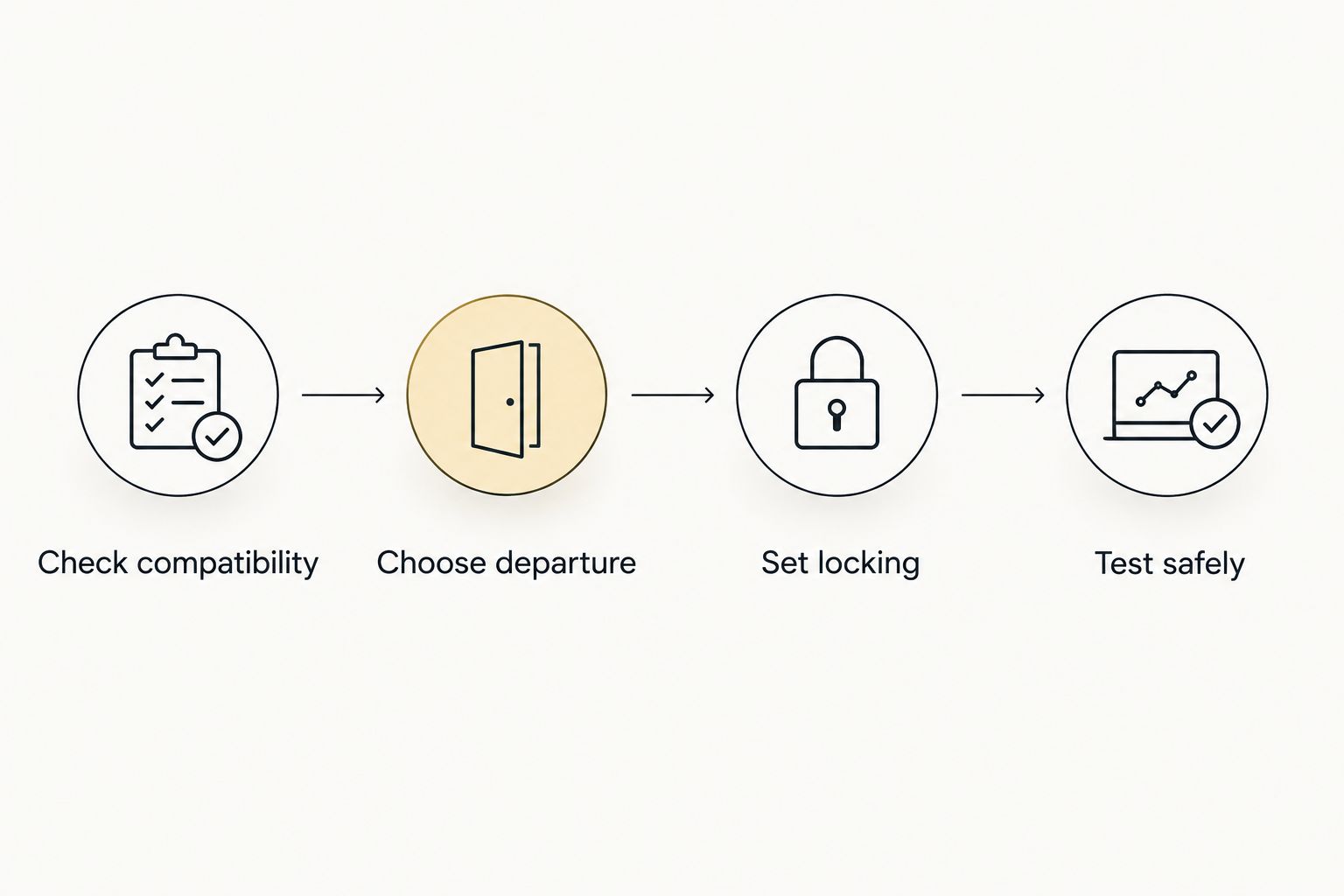
Test the physical result, not just whether the automation saved successfully.
A successful test of the action does not test location reporting. Conversely, a departure notification does not prove the bolt entered the strike. Verify both before treating the routine as dependable.
Alternative: relock after every unlock
Timed relock suits households that want the door to lock again after entry, without waiting for everyone to leave. It is a separate feature, and support depends on the lock.
- Read the manufacturer's instructions for the exact model and find its automatic relocking setting. Do not assume a similarly named feature behaves the same across brands.
- Confirm what starts the timer: an unlock event, a door-close event, or another condition. This distinction determines what happens when the door stays open.
- Choose an offered delay that fits how you actually use the doorway. Review whether the feature requires a door-position accessory and whether it works without an internet connection.
- Test with the door closed and backup entry ready. Then check the documented behavior when the door is open, without letting the extended bolt strike the frame.
Expected result: The lock relocks under the manufacturer's documented conditions, independent of whether a household departure occurs.
The advantage is less reliance on phone location when the timer runs locally. The drawback is lockout risk during ordinary activities such as taking out rubbish or talking to a neighbor. Do not enable timed relock until everyone knows how to regain entry.
Troubleshooting a departure routine
The lock works in the app but not after departure
Check the home hub, accessory connection, and the participating phone's location permissions. Confirm that the person actually crossed the configured home boundary. A manual command tests the action path, not the departure trigger.
The routine locks while someone is still home
Review the people selection first. An individual-departure trigger ignores other residents, while a last-person trigger still cannot account for guests or residents who do not participate in location reporting. Disable the routine until the household logic matches your needs.
The app reports locked, but the door is open
Check what the reported state describes. Bolt position and door position are different measurements; a lock without separate door sensing cannot establish that the door is closed. Correct the closing problem and review any supported door-position features before retesting.
The motor runs, but the bolt catches
Pause the automation and check ordinary manual operation. A door that needs pressure to lock has a physical issue that software cannot fix. Avoid forcing the mechanism or repeatedly commanding it to lock.
Locking happens twice or at an unexpected time
Review the lock's own relock setting and other household routines. Temporarily disable overlapping rules, then test one workflow at a time. Reintroduce another rule only when its purpose and interaction are clear.
Customize your workflow without adding failure points
Start with the lock command alone. After successful departure and household-exception tests, add supported status notifications so you can distinguish a completed action from a warning that needs attention.
For the ecosystem connection itself, use the guide to connecting a smart lock to Apple HomeKit. Pairing and departure automation are separate tasks; neither confirms the physical fit of the deadbolt.
Keep a short household note describing the trigger, backup entry method, and where to disable the routine. Recheck those details when someone changes phones, moves out, or loses home access.
FAQ
How do I make my smart lock automatically lock when I leave?
Use a supported departure automation that sends a lock command when you or the last participating resident leaves home. Confirm compatibility, household location settings, and physical door closure before testing with backup entry ready.
Is auto relock the same as locking when I leave home?
No. Timed relock normally responds to an unlock or another manufacturer-defined event, while departure locking responds to a location event. Check the exact model's instructions to establish what starts its timer.
Should I choose my departure or the last person's departure?
Choose last-person departure when the goal is to lock after all participating residents leave. An individual trigger does not account for other occupants, and neither option automatically tracks guests.
Can a smart lock tell whether my front door is closed?
Only a setup with supported door-position detection can separately report whether the door is closed. A locked bolt state alone does not prove the door is shut or that the bolt is seated in the strike.
Will departure locking work without internet?
Offline behavior depends on the lock, home hub, connection method, and automation platform. Check the manufacturer's documentation rather than assuming a local relock timer and a location-based routine have the same requirements.
Why does the lock work manually but fail in an automation?
A manual command and a departure event test different parts of the setup. Check the automation's target state, household location settings, home hub, and accessory connection, then test the trigger and action separately.
Can GO Locksmith help if my front door will not lock properly?
GO Locksmith offers residential lock repair, replacement, rekeying, and house lockout services. Call (239) 412-1101 to discuss the physical lock problem and request service; automation configuration is not established as an offered service.
One last thing
Test the person who stays home, not just the person who leaves. That exception reveals whether your routine follows the household or merely follows one phone.
If the deadbolt binds or the door will not secure manually, call GO Locksmith at (239) 412-1101 to discuss residential locksmith service. Service areas include Fort Myers, Cape Coral, Lehigh Acres, Estero, Bonita Springs, and Naples. Hours are Sunday–Thursday 7:00 AM–11:00 PM and Friday 7:00 AM–5:00 PM; Saturday is closed.