
Blog ·
How to connect a smart lock to a Samsung SmartThings hub
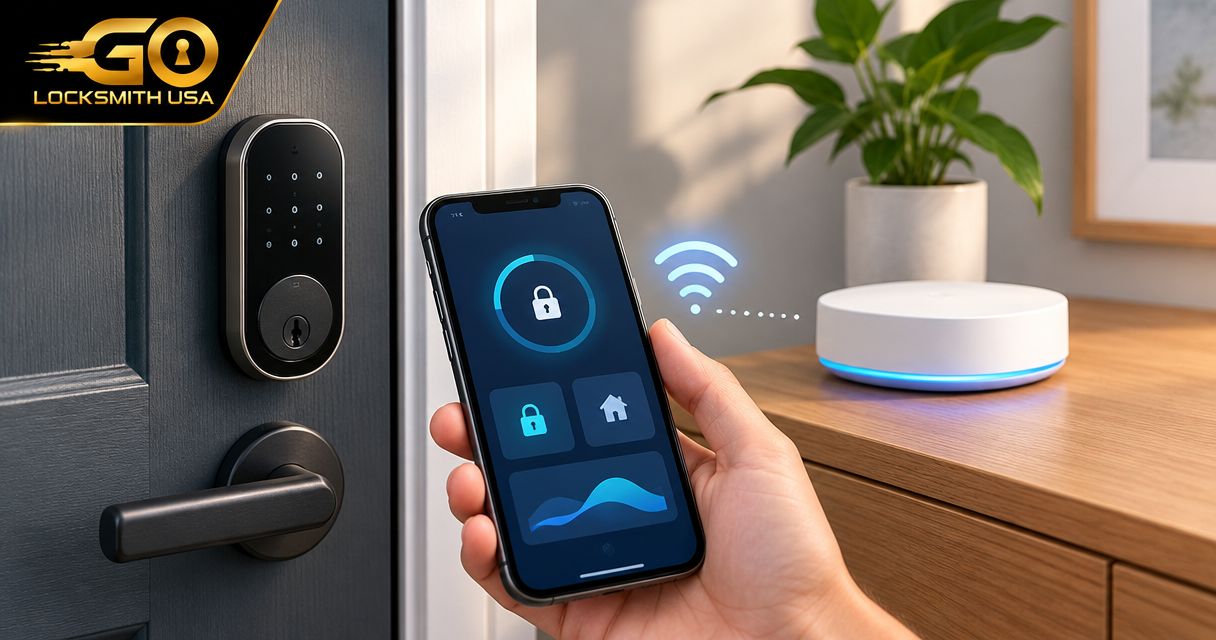
Instead of walking to the door to check its status, connect a compatible smart lock to your Samsung SmartThings hub so you can check and control it in the SmartThings app. Start by matching the lock’s exact model and wireless protocol to your hub, then follow the supported pairing route and test the lock with the door open.
TL;DR
- To connect smart lock to SmartThings hub, confirm exact-model compatibility before starting pairing.
- SmartThings setup differs for Z-Wave, Zigbee, Matter, and manufacturer-account connections.
- Test app commands with the door open before relying on remote control.
- GO Locksmith handles confirmed residential locksmith needs; SmartThings compatibility requires model-specific confirmation.
Why compatibility comes before pairing
A smart lock and a SmartThings hub do not connect simply because both support wireless communication. The hub needs the right radio or integration, and SmartThings needs support for the lock’s functions. A working connection also does not guarantee that every manufacturer-app feature appears in SmartThings.
Confirm the exact model, not just the brand name. Similar-looking locks can use different connectivity modules. If you are comparing connection types first, see the guide to smart locks with Wi-Fi versus Bluetooth connectivity.
GO Locksmith is a mobile locksmith service for homeowners who need house lockout help, rekeying, or mechanical lock repair. Treat those door-and-key needs separately from app pairing: a connection problem and a binding deadbolt require different fixes.
Before you start
- Accounts and access: Have the SmartThings app, access to the correct SmartThings location and hub, and the lock’s administrator credentials. Keep its manufacturer instructions, exact model number, and any setup code available.
- Hardware and safe access: Use batteries specified by the lock manufacturer. Confirm that the bolt moves freely, keep the door open during initial testing, and retain an authorized backup entry method.
- The easy-to-miss gotcha: A previously connected lock can still belong to another network or account. Follow its documented removal, exclusion, or sharing procedure before pairing; do not start with a factory reset that erases settings unnecessarily.
Choose the supported connection route
Use the lock manufacturer’s compatibility instructions alongside Samsung SmartThings support information for your exact hub. A protocol name alone is not enough to establish compatibility.
| Connection route | Best for | Advantage | Limitation to check |
|---|---|---|---|
| Z-Wave | A supported Z-Wave lock and compatible hub | Connects the lock through the hub’s Z-Wave network | Hub radio support, regional compatibility, and previous network membership matter |
| Zigbee | A supported Zigbee lock and compatible hub | Connects through the hub’s Zigbee network | Sharing a protocol does not establish full feature support |
| Matter | A supported Matter lock and compatible controller | Supports a standardized commissioning route | Matter-over-Thread also needs a suitable Thread border router |
| Manufacturer-account integration | A lock with an explicitly supported SmartThings account integration | Connects through the manufacturer’s supported service | Internet access, account permissions, and exposed features depend on the integration |
A Bluetooth-only lock is not automatically a remotely controllable SmartThings device. Likewise, a Wi-Fi lock does not necessarily pair directly with your hub. Check the supported route before buying an accessory or changing settings.
Check compatibility
- Find the lock’s exact model number and any installed connectivity module. Check the inside cover, product documentation, or manufacturer app as directed by the manufacturer.
- Identify your hub’s exact model. Confirm its supported radios and, for Matter, its controller capabilities rather than relying on the SmartThings name alone.
- Look for documented SmartThings support for that particular lock configuration. Check whether the instructions specify direct hub pairing, Matter commissioning, or account linking.
- Write down the features you need: lock and unlock commands, status reporting, battery reporting, or notifications. Verify each separately; successful pairing does not establish support for access-code management.
Expected result: You know which connection route to use and which functions the integration supports. If the manufacturer does not document a supported route, stop before resetting the lock or purchasing additional hardware.
For a Matter-over-Thread lock, distinguish the controller from the Thread border router. Those roles can exist in the same device, but not every SmartThings hub supplies both. Follow the supported hardware combination in the relevant setup instructions.
Prepare the hub
- Open SmartThings and select the location containing the intended hub. Confirm that the hub appears online before adding the lock.
- Check for app and hub updates through their supported update processes. Complete any pending setup prompts before beginning device discovery.
- If the lock already belongs to another system, use the manufacturer’s documented transfer procedure. A Z-Wave lock generally needs exclusion before joining a different Z-Wave network; do not substitute a generic button sequence.
- Check the lock’s batteries and manual operation. Open the door and extend and retract the bolt without pressing it against the strike plate.
Expected result: The hub is online, the lock is ready for its supported joining procedure, and the bolt moves without binding.
Keep a record of existing access settings before any manufacturer-required reset. Depending on the model, a reset removes codes, calibration, network membership, or other configuration. Recreating those settings is separate from connecting the lock to SmartThings.
The setup sequence is simple once these prerequisites are settled: check compatibility, prepare the hub, pair the lock, and test operation.
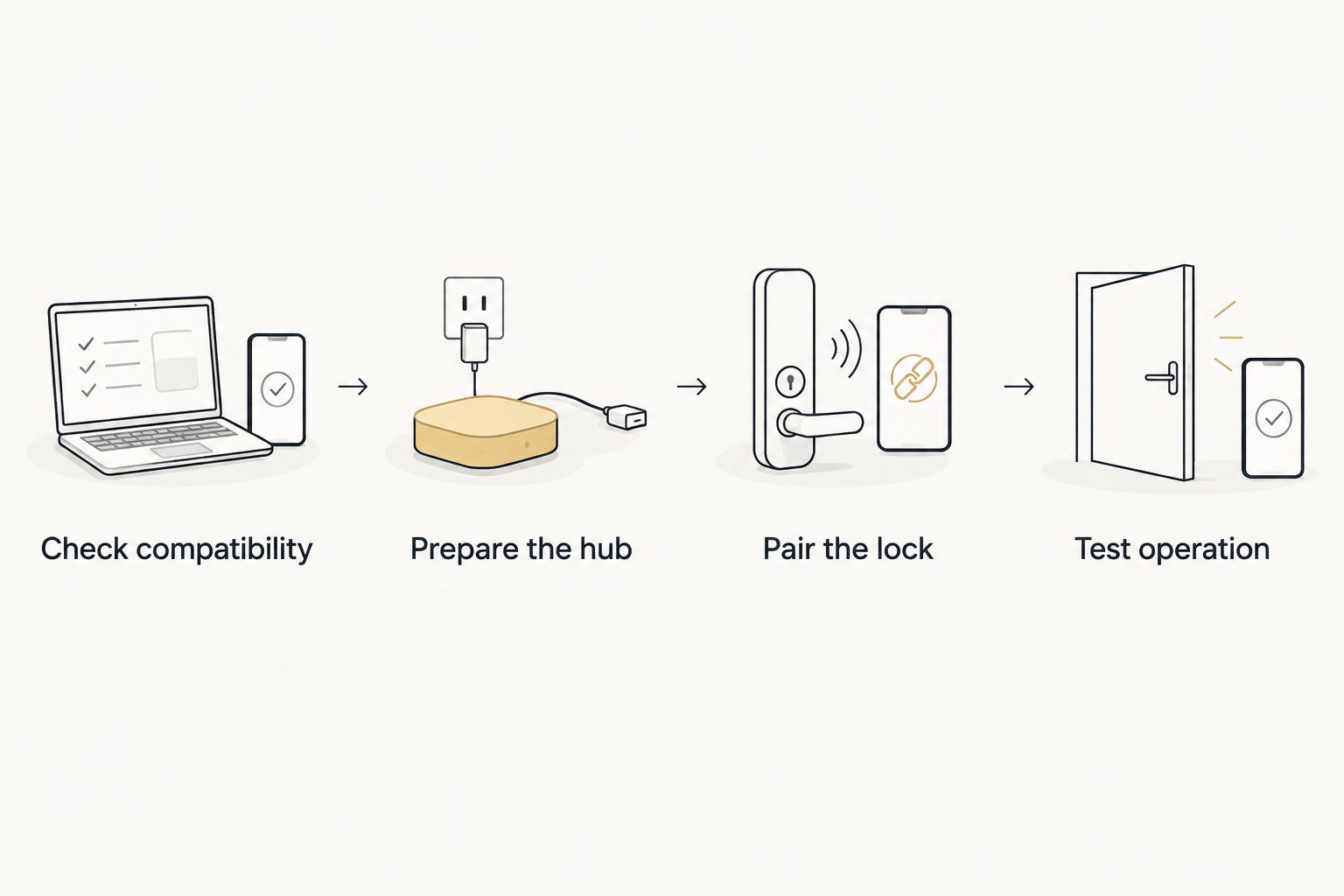
Choose the supported connection route before putting the lock into pairing mode.
Pair the lock
- In SmartThings, open Devices, tap +, and choose Add device. Screen layouts vary by app version and connection route; use the device-specific instructions if your screen differs.
- Select the supported method. Use Scan QR code when the setup instructions call for a compatible QR code, or follow the listed manufacturer’s onboarding route. Do not assume every code printed on the lock is a SmartThings setup code.
- Select the intended location and hub when prompted. Put the lock into its documented pairing or commissioning mode only when the app is ready to discover it.
- Complete the requested security confirmation. For supported secure Z-Wave onboarding, the app can request device-specific security information; for Matter, use the appropriate commissioning code. Keep these credentials private.
- Let onboarding finish, then give the lock a recognizable name and assign it to the appropriate room. Confirm that you added the correct physical door before issuing commands.
Expected result: SmartThings shows a device for the lock in the intended location. Open its device page and check which controls and status fields actually appear.
For a manufacturer-account connection, follow the supported account-linking prompts instead of forcing direct hub discovery. Sign in to the account that owns the lock and authorize only the requested access you understand. Finish the manufacturer’s initial setup first if its instructions require that sequence.
For a Matter lock already connected to another ecosystem, use that ecosystem’s supported device-sharing process. Its sharing flow can generate a new commissioning code. Do not assume that scanning the original packaging code will reopen commissioning, and do not reset a working installation merely to try another code.
Test operation
- Leave the door open and use the SmartThings device control to extend and retract the bolt. Watch the physical bolt rather than relying only on the displayed status.
- Operate the lock manually and check whether SmartThings reflects the change. Allow the integration to report its state; investigate a persistent mismatch before adding routines.
- Close the door while you remain inside and retain access to the interior release. Check that the bolt enters the strike cleanly, then repeat the app command.
- If remote operation is a supported feature, turn off your phone’s Wi-Fi and test through cellular data. This checks the remote path rather than only your phone’s local connection.
Expected result: Commands operate the intended lock, reported status matches bolt movement, and the door closes without resistance.
A reported locked state is not proof that the door is closed. Unless the installation supplies supported door-position information, the app can report an extended bolt while the door stands open. Test door-position reporting separately when your hardware provides it.
If the bolt works with the door open but stalls when closed, address the mechanical alignment before repeating remote commands. App settings cannot correct a bolt pressing against the strike plate.
Get a notification when the lock status changes
Once basic control works, a status notification is a useful adjacent workflow. It lets you test automation without introducing automatic unlocking.
- Open Routines in SmartThings and tap +.
- Under If, choose the lock and an available status condition, such as unlocked. Use only conditions the connected device actually exposes.
- Under Then, select an available notification action and choose the intended recipient settings.
- Name the routine, tap Save, and trigger the condition while you are present at the door.
Expected result: The routine sends the intended notification when the supported condition occurs. Check your phone’s notification permissions if the routine runs without a visible alert.
Start with a status notification rather than automatic unlocking based solely on phone location. Location is not a check of who is standing at the door. Also distinguish an unlock notification from a door-open notification: those events require different device information.
Troubleshooting
SmartThings cannot find the lock
Recheck the exact model, connection route, and documented pairing mode. For a previously connected Z-Wave device, complete the supported exclusion procedure before another inclusion attempt. Improve the setup connection using manufacturer guidance rather than assuming a failed search means the lock is defective.
Pairing stops at a security-code prompt
Use the security information for that exact device. Check whether the prompt requests a Matter commissioning code or Z-Wave security information; they are not interchangeable. If a Matter device is already commissioned elsewhere, reopen its supported sharing process rather than repeatedly scanning an inactive code.
The lock appears but commands fail
Check battery condition, hub connectivity, and the integration’s supported controls. If you used account linking, confirm that the manufacturer account remains connected. Separate a communication failure from a mechanical failure by checking manual operation and testing with the door open.
The app reports locked, but the door is not secured
Inspect the physical bolt and door position. An extended bolt outside the strike does not secure an open door. Correct alignment problems and verify any supported door sensor independently; do not treat the device tile as a substitute for that check.
Access-code controls or routines are missing
Confirm that the integration exposes those capabilities. A working lock/unlock control does not guarantee keypad-code management, user identification, or every routine condition. Use the manufacturer’s supported method for functions SmartThings does not provide.
Customize your workflow
Add one supported function at a time: status notifications first, then carefully tested routines. Review who can access the SmartThings location and the manufacturer account. Remove access that is no longer authorized, and protect both accounts using their available security settings.
Keep the mechanical and connected parts of the installation separate in your troubleshooting notes. Record the exact lock model, hub model, connection route, and failure message before contacting the relevant manufacturer’s support team.
For a binding lock, a rekey, or a house lockout, contact GO Locksmith about the specific residential locksmith job. Do not assume that a locksmith service request includes SmartThings configuration or electronic access-control work.
FAQ
Can I connect any smart lock to a SmartThings hub?
No. The exact lock model, connectivity module, hub, and integration must support the connection. Confirm compatibility and required features before starting setup.
Do I need a hub for a Wi-Fi smart lock in SmartThings?
The supported integration determines whether you need a hub. Some locks connect through a manufacturer-account integration rather than direct hub pairing; Wi-Fi alone does not establish SmartThings support.
Why will my Z-Wave lock not pair with SmartThings?
A previous network connection, incorrect pairing mode, or communication problem can prevent pairing. Follow the model’s documented exclusion and inclusion procedures and confirm that your hub supports the device.
Can I add a Matter lock that already works in another app?
Yes, when the lock and ecosystems support Matter sharing. Open the existing ecosystem’s device-sharing process and use its commissioning instructions rather than immediately factory-resetting the lock.
Will SmartThings manage all my lock’s keypad codes?
Not necessarily. Code management depends on the exact lock and integration, even when locking and unlocking work. Check the supported capabilities and use the manufacturer’s documented method where necessary.
Does a locked status mean my front door is closed?
No. A lock can report an extended bolt while the door is open. Confirm physical operation and separately test door-position reporting if the installation supports it.
Can GO Locksmith help if the deadbolt binds after setup?
GO Locksmith offers residential lock repair, replacement, and rekey services. Call (239) 412-1101 to describe the mechanical problem and check availability; SmartThings configuration is not established by those services.
One last thing
Keep your backup entry method usable after pairing. A successful app test does not replace a working key, supported keypad entry, or another authorized way inside. Test that backup before you depend on remote control.
For residential lock help in Fort Myers, Cape Coral, Lehigh Acres, Estero, Bonita Springs, or Naples, call (239) 412-1101 to discuss the job. Hours are Sunday–Thursday, 7:00 AM–11:00 PM; Friday, 7:00 AM–5:00 PM; closed Saturday.