
Blog ·
How to connect a smart lock to a Kwikset Halo app
To connect a smart lock to the Kwikset Halo app, use the Kwikset app to pair a compatible Halo lock over Bluetooth, then connect it to your home Wi-Fi. Instead of walking to the door to check its status, complete both connections and test remote control before relying on it away from home.
TL;DR
- To connect smart lock to Kwikset Halo app, use the Kwikset app and your model’s setup instructions.
- Bluetooth handles nearby setup; home Wi-Fi enables remote access on compatible Halo Wi-Fi locks.
- Check ownership, account access, batteries, and door alignment before pairing.
- Keep the door open during testing, and avoid a factory reset as your first troubleshooting step.
Why this matters
A lock appearing in your phone does not prove that remote access works. Bluetooth pairing, the lock’s Wi-Fi connection, and the deadbolt’s physical movement each need a separate check.
A successful setup lets you operate the lock nearby and remotely without pushing or pulling the door. An app cannot correct a bolt that catches against the strike plate.
GO Locksmith provides mobile locksmith services that include residential lock repair, replacement, and rekeying. This guide explains app setup; it does not establish that a particular lock or electronic feature is supported as a service.
Before you start
- Confirm the exact lock model and your authority to manage it. Have its installation guide, your phone, access to your Kwikset account, and any existing owner’s cooperation. “Kwikset” on the outside does not mean every model connects to the same app.
- Prepare the connection and power. Enable your phone’s Bluetooth, have the home Wi-Fi name and password ready, and install the batteries specified in the lock’s manual. Standard Halo Wi-Fi setup uses a 2.4 GHz network; a 5 GHz-only network is not a substitute.
- Resolve previous ownership before pairing. A previously installed lock can involve an existing account or configuration. Do not assume reinstalling the app transfers ownership, and do not reset the lock until you understand which settings and credentials will be erased.
Work from inside with the door open. If your model has a physical backup key, keep it accessible rather than leaving your only fallback inside the house.
Lock and account preparation
Confirm the hardware before opening the app
- Find the model information on the lock, packaging, or installation paperwork. Match it to the manufacturer’s instructions rather than identifying it only by the exterior keypad.
- Confirm that the instructions specify the Kwikset app. The phrase “Halo app” commonly refers to the app used with Halo locks, not a separate app with that exact name.
- Check that installation and the model’s door-handing procedure are complete. Door handing teaches the lock the direction and travel needed to move its bolt; it is different from phone pairing.
- With the door open, operate the interior thumb turn. Stop if the bolt binds, grinds, or cannot extend and retract freely.
Expected result: You have identified the correct app and a mechanically functioning lock. If the deadbolt cannot operate smoothly by hand, address that problem before troubleshooting wireless connections.
Do not tighten mounting screws further just because pairing fails. Mechanical adjustment and app connection are different tasks, and unnecessary changes can introduce another problem.
Prepare your phone and account
- Install the Kwikset app from your phone’s official app store, checking that the publisher is Kwikset.
- Create an account or sign in to the account authorized to manage the lock. Complete any verification the app requests before starting device setup.
- Turn on Bluetooth in your phone’s settings. Allow the nearby-device or Bluetooth permissions requested for setup; permission names depend on your phone’s operating system.
- Stand near the interior side of the lock. Keep the app open while following its setup prompts.
Expected result: You can access your account, and the app has permission to communicate with nearby hardware. Account verification should not remain unfinished when you begin pairing.
Bluetooth pairing and Wi-Fi configuration
Pair the Halo lock nearby
- Start the app’s guided process for adding a lock. If prompted, create or select the home where the lock belongs.
- Follow the pairing instructions for your exact model. Use the button and indicator sequence shown in the app or installation guide; do not substitute a reset sequence found for another lock.
- Select your lock when the app discovers it. If more than one device appears, confirm which device is yours before continuing.
- Give the lock a location-based name, such as Front Door. Use a name that distinguishes it from another entrance without revealing an access code.
- Complete any remaining prompts before leaving the pairing screen.
Expected result: The app recognizes the lock and allows you to continue its configuration. Discovery alone is not the finish line: an interrupted pairing process can leave setup incomplete.
Avoid pairing through your phone’s general Bluetooth device list unless the manufacturer’s instructions explicitly direct you there. Start inside the Kwikset app so the device is associated with the intended account and home.
Connect the lock to home Wi-Fi
- Continue to the Wi-Fi portion of guided setup. Select the intended home network and enter its password carefully.
- For a standard Halo Wi-Fi lock, confirm that your router provides a compatible 2.4 GHz connection. Your phone having internet access does not establish that the lock can join the network.
- Keep the phone near the lock while setup completes. Do not remove the batteries or close the app during an update or configuration process.
- Follow any firmware-update prompts and wait for the app to finish. Do not interrupt an update because the screen appears unchanged briefly.
- Check the connection status shown for the lock before testing remote operation.
Expected result: The lock joins the home network and finishes the app’s setup process without a connection error. A nearby Bluetooth connection is not evidence that this Wi-Fi step succeeded.
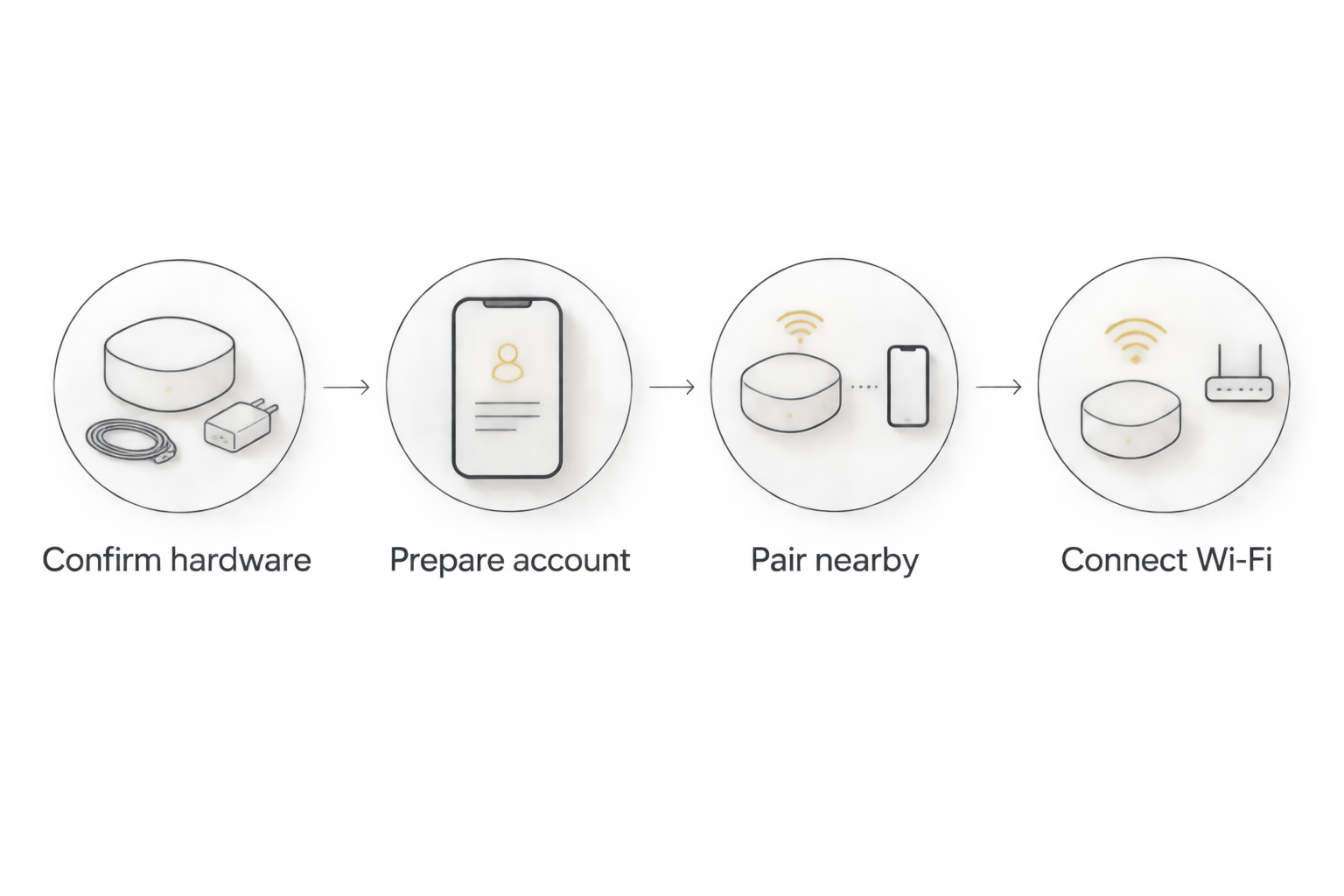
Complete nearby pairing before testing the lock’s remote connection.
Door operation and remote-access checks
Run separate checks for physical operation and connectivity. Keep the door open for the initial powered test, and keep another authorized way to enter available before testing with the door closed.
- Test open-door operation. Use the app to extend and retract the bolt. Watch the bolt itself rather than relying only on an animation or status message.
- Test closed-door alignment. Close the door normally and operate the lock from inside. Do not lift, pull, or push the door to make the bolt fit.
- Test remote access. With an authorized person inside, take your phone out of Bluetooth range, turn off the phone’s Wi-Fi, and use cellular data. Leave the home router running.
- Confirm the result physically. Ask the person inside to verify whether the bolt moved and whether the app’s reported status matches it.
Expected result: The lock operates without door pressure, and a command sent outside Bluetooth range reaches it through the home internet connection.
Which connection are you actually testing?
| Connection | Best for | Advantage | Limitation |
|---|---|---|---|
| Nearby Bluetooth | Initial pairing and nearby communication | Lets your phone communicate directly with the lock | Does not prove that away-from-home control works |
| Home Wi-Fi and internet | Remote status checks and commands on compatible Halo Wi-Fi locks | Connects the lock when your phone is elsewhere | Depends on the lock’s network connection and home internet |
Do not treat nearby success as proof of remote reliability. If the lock works beside the door but fails on cellular data outside Bluetooth range, investigate its network connection rather than repeating door-handing steps.
Reconnect after changing your router or Wi-Fi password
Changing a router, network name, or password creates a different setup problem from adding a new lock. Preserve the existing lock configuration where the model’s instructions allow it.
- Sign in to the account that already manages the lock. Confirm that you are viewing the existing device rather than starting a duplicate setup.
- Stand near the lock with Bluetooth enabled. Open the lock’s settings and follow the model-specific instructions for updating its Wi-Fi connection.
- Enter the current network details when prompted. Confirm compatibility with the lock before changing router settings.
- Repeat the remote-access test using cellular data outside Bluetooth range.
Expected result: The existing lock reconnects to the home network, and remote operation works again. Review access settings afterward rather than assuming every previous setting is unchanged.
If you cannot find the applicable network-change procedure, consult the exact model’s manual or Kwikset support. A factory reset is not a harmless substitute: it can remove configuration you then have to rebuild.
Troubleshooting connection failures
The app cannot find the lock
Check the batteries, move the phone close to the interior assembly, and confirm Bluetooth permissions. Then repeat the model’s pairing procedure from the beginning.
Do not repeatedly press internal buttons without identifying them. Pairing, network reset, and factory reset are not interchangeable operations.
The lock appears, but setup stops at Wi-Fi
Recheck the network password and confirm that a compatible 2.4 GHz connection reaches the door. A strong signal beside the router does not establish adequate reception at the lock.
If the network uses a browser-based sign-in page, do not assume the lock can complete that login. Check the manufacturer’s network requirements before continuing.
The lock works nearby but not away from home
Verify that the lock remains connected to home Wi-Fi and that the home internet connection works. Repeat the cellular-data test outside Bluetooth range so your phone cannot mask the problem with a local connection.
Re-pairing Bluetooth will not repair an unavailable home internet connection. Diagnose the connection that actually failed.
The motor runs, but the bolt does not finish moving
Test with the door open. If open-door operation succeeds but closed-door operation fails, inspect alignment rather than changing app credentials.
GO Locksmith offers residential lock repair and replacement; ask about the specific mechanical problem before requesting service. Do not force the bolt or repeatedly command a stalled motor.
The lock belongs to a previous owner’s account
Ask the authorized existing owner to follow Kwikset’s transfer or removal instructions. If that person is unavailable, contact Kwikset for the procedure applicable to the model.
Do not assume possession of the door key gives you access to the app account. Physical access, account ownership, and saved access credentials are separate issues.
Customize your workflow without creating a lockout risk
Once basic operation works, configure only the features supported by your exact model. Review access permissions, notifications, and any automatic-locking settings individually, testing each change before adding another.
Give another authorized household member access through the supported sharing process rather than sharing your account password. Keep account credentials separate from door access codes, and remove access when someone no longer needs it.
Keep a fallback entry plan that does not depend on the phone you are carrying. A discharged phone, a depleted lock battery, and an internet outage are different failures; one successful app test does not eliminate them.
For mechanical lock repair, replacement, or rekeying questions, call GO Locksmith at (239) 412-1101 to discuss the hardware and request service. App-account recovery and model-specific firmware questions belong with Kwikset support.
FAQ
What app do I use to connect a Kwikset Halo smart lock?
Use the Kwikset app for a compatible Halo lock. Confirm the exact model in its installation guide before starting, because the Kwikset name alone does not establish app compatibility.
Can I connect any smart lock to the Kwikset app?
No. The lock must be a model supported by the Kwikset app; a different brand or incompatible Kwikset model cannot be added simply because it has Bluetooth or Wi-Fi.
Does a Kwikset Halo lock need Bluetooth or Wi-Fi?
Standard Halo Wi-Fi setup uses Bluetooth for nearby pairing and Wi-Fi for remote connectivity. Test remote operation separately because successful Bluetooth communication does not confirm an internet connection.
Why won't my Halo lock connect to my home Wi-Fi?
Check network compatibility, the password, and reception at the door first. Standard Halo Wi-Fi locks use a compatible 2.4 GHz connection, so a 5 GHz-only network does not meet that requirement.
Should I factory-reset my Halo lock if pairing fails?
Do not make a factory reset your first step. Check permissions, power, pairing instructions, and account ownership first; a reset can erase configuration and require additional setup.
Can I set up a used Halo lock from a previous homeowner?
Resolve the existing ownership and configuration before treating it as a new lock. Follow Kwikset’s model-specific transfer or reset instructions, and review both digital access and physical-key access.
Why does my smart lock work with the door open but not closed?
That pattern points to a mechanical alignment or clearance problem rather than an app-pairing problem. Check whether the bolt meets the strike opening cleanly, and avoid forcing or repeatedly cycling a binding lock.
One last thing
Connecting the app does not change who has a physical key. If your Halo model has a keyed cylinder and the lock came with a home purchase, review physical-key access separately from app ownership and saved codes.
For a move-in, resetting digital credentials and assessing whether the cylinder needs rekeying answer different security questions. Finish both checks before treating the entrance as fully under your control.