
Blog ·
How to connect a smart lock to a Honeywell Home security system
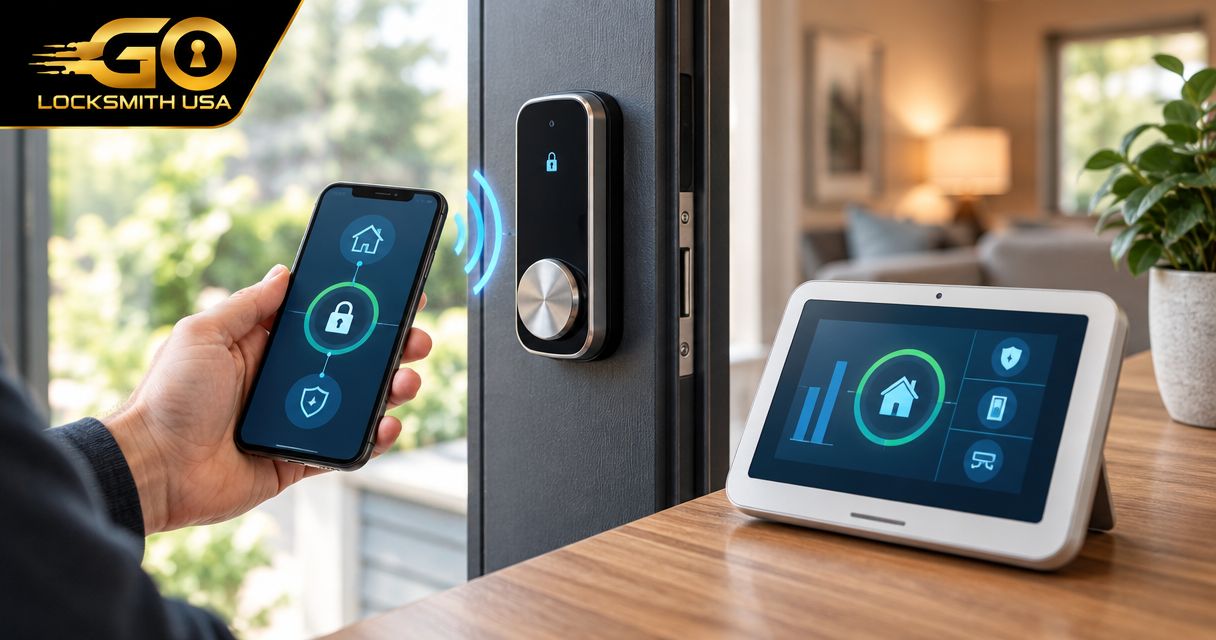
Instead of managing your door lock and alarm separately, connect a compatible smart lock to your Honeywell Home security system through its supported automation controller, then verify control in the associated app. Start with the exact panel and lock models: the Honeywell Home name alone does not establish compatibility, and a Wi-Fi lock does not automatically connect to an alarm panel.
TL;DR
- To connect smart lock to Honeywell Home security system hardware, confirm panel, radio, lock, and account compatibility first.
- Supported Z-Wave locks enroll through a compatible controller, not through the home's Wi-Fi settings.
- Total Connect 2.0 remote lock control depends on supported equipment and enabled account features.
- GO Locksmith provides residential lock services; ask your alarm provider about controller compatibility and account configuration.
Why this matters
A lock can work perfectly in its own app without appearing in your security system. Physical fit, wireless compatibility, and remote account permissions are separate requirements. Satisfying one does not satisfy the others.
Confirm the connection route before buying hardware or resetting an existing lock. A reset can remove settings without solving an incompatible-radio problem.
GO Locksmith is a mobile locksmith option for homeowners who need lock repair, replacement, or rekeying. Keep that mechanical work separate from alarm enrollment, monitoring-account changes, and electronic access-control configuration.
Before you start
- Identify the equipment. Record the security panel model, any automation controller or radio module, and the lock's exact model and wireless version. Get the corresponding manufacturer instructions rather than relying on a product-family name.
- Confirm access and permissions. Have authorized controller access, the lock's programming instructions, and your security-app login. Ask your alarm provider whether your account supports door locks and remote automation through Total Connect 2.0 or another specified platform.
- Check the previous-controller gotcha. A Z-Wave lock previously enrolled elsewhere generally needs exclusion before joining another controller. Removing it from an app's device list is not necessarily Z-Wave exclusion; do not factory-reset the lock as your first troubleshooting step.
Keep the door open during initial lock tests, and retain an independent way to enter. If you rent or manage the property, obtain permission before changing hardware or security settings.
Confirm the connection route
Match the controller to the lock
- Read the panel model. Find it in the panel's system information or on accessible documentation. Do not open powered alarm equipment or disconnect wiring to look for a label.
- Find the supported automation protocol. Check the panel or controller manual for door-lock support. Internet access at the panel does not establish Z-Wave support.
- Match the lock's exact variant. A product family can contain different wireless versions. Check the model number, not just the name printed on the exterior package.
- Confirm the remote platform. Ask your alarm provider whether the specific lock can appear and operate in your account. Local controller support and app support are different checks.
Expected result: You can identify the controller, supported lock protocol, compatible lock variant, and account platform before starting enrollment.
The Honeywell Lyric Controller is one example of a security controller with Z-Wave automation functionality. That does not make its instructions interchangeable with every Honeywell Home keypad or security panel. A keypad connected to a separate alarm panel is not necessarily the automation controller.
Choose the appropriate workflow
| Connection route | Best for | Advantage | Limitation |
|---|---|---|---|
| Compatible Z-Wave lock enrolled in a supported security controller | Homeowners seeking lock control within their supported alarm platform | Connects the lock to the controller's supported automation functions | Requires compatible hardware, secure enrollment, and any necessary account features |
| Lock operated separately through its own supported app | Homeowners whose alarm system does not support their lock | Keeps supported lock functions usable without forcing an incompatible connection | Does not, by itself, integrate the lock with the alarm system |
Use the controller route only after compatibility is confirmed. Keeping a lock separate is a valid outcome when the equipment does not support integration; repeated pairing attempts will not change its radio protocol.
Enroll the lock in the controller
The following sequence explains the enrollment workflow. Menu wording differs by panel, so use the matching controller manual for navigation. The Lyric labels below apply to the Lyric Controller, not to all Honeywell Home equipment.
Controller enrollment
- Prepare the lock. Install the manufacturer-specified batteries and complete the lock's required handing or calibration procedure. Confirm that the bolt operates smoothly with the door open.
- Resolve previous enrollment. If the lock belonged to another Z-Wave network, follow the controller and lock instructions for exclusion. On the Lyric Controller, the relevant function is Exclude Devices within its Z-Wave tools. Exclusion can break existing automations, so obtain the owner's permission first.
- Open inclusion mode. On the Lyric Controller, open Automation, use the down arrow to reach Tools, and select Include Devices. If your interface differs, stop and check the manual rather than substituting an unrelated menu.
- Activate the lock's enrollment command. Follow the exact lock instructions for its inclusion button or programming sequence. There is no universal keypad code for this step.
- Complete any security prompts. Follow the controller's supported enrollment process. Do not downgrade security settings simply to make pairing finish.
- Confirm the detected device. Check that the controller recognizes a door lock and reports completion. Give it a location-specific name, such as Front Door, if naming is offered.
Expected result: The controller lists the lock as a controllable door lock, not merely as an unidentified device.
Do not assume an enrollment message proves the installation is finished. The controller still needs to send commands successfully and receive meaningful status updates.
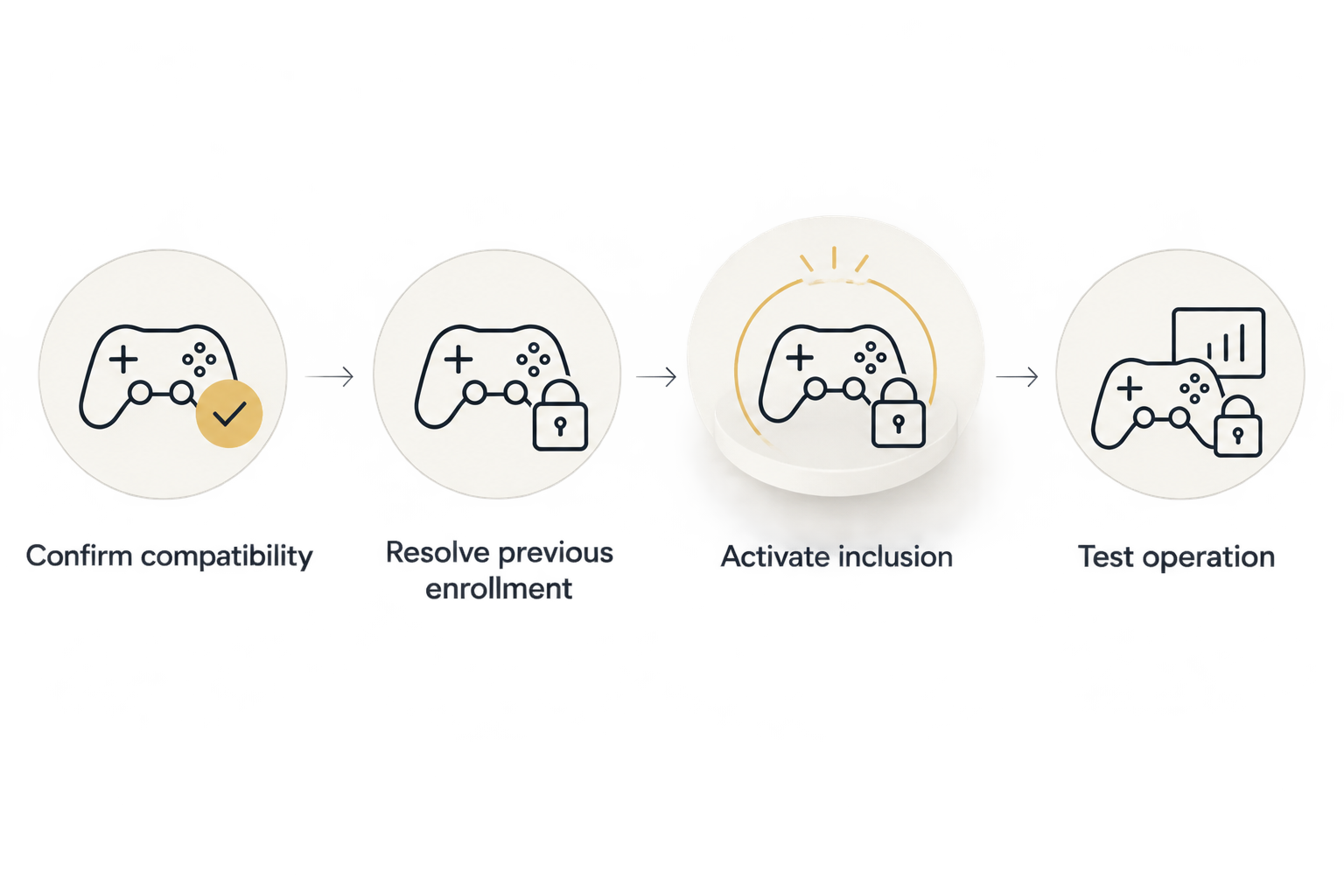
Confirm compatibility before enrollment, then test commands and reported status separately.
Local operation checks
- Send a lock command with the door open. Watch the bolt move and wait for the controller to report its final state.
- Send an unlock command. Confirm the bolt retracts fully without binding or repeated motor attempts.
- Operate the lock manually. Check whether the controller updates its displayed state as described in the equipment documentation.
- Repeat with the door closed while you remain inside. Stop if the bolt catches the strike or needs pressure on the door to move.
Expected result: The lock works mechanically and responds consistently to local controller commands. Fix binding before adding automation; software does not correct a misaligned strike.
Enable remote control and verify status
Account configuration
- Sign in to the platform specified by your alarm provider. For a supported Total Connect 2.0 installation, use the account associated with that security system. The Honeywell Home app name is not a substitute for confirming the correct platform.
- Check for the enrolled lock. If it does not appear, ask the provider to confirm automation entitlement, device synchronization, and support for that controller-lock combination. Do not repeatedly delete a working local enrollment.
- Test remote locking from a safe position. Keep the door open initially and maintain a separate means of entry. Confirm both physical bolt movement and the app's reported result.
- Test outside the home's Wi-Fi connection. Use your phone's cellular connection to distinguish remote account control from a connection that only works locally.
- Review household permissions. Give each authorized person the access level supported by the platform. Do not share the alarm's installer credentials or a single administrator login as a convenience.
Expected result: The correct authorized account can operate the lock remotely and receive an updated status.
A successful app command is not proof that the door itself is closed. A bolt-position report and a door-position report are different information. Door-closed verification requires suitable door-position sensing and support in the system.
Variant: lock the door when you arm away
A supported automation rule can connect an alarm event to a lock command. Use this only when your controller and account explicitly offer the required trigger and lock action.
- Open the automation or scene controls. In Total Connect 2.0, supported automation is managed through Scenes. Available triggers and actions depend on the installation and account.
- Choose the supported away-arming event. Do not substitute an unfamiliar alarm event or assume that every arming mode behaves identically.
- Add the specific door's lock action. Start with the intended entry door, not every lock in the property.
- Review the rule before saving. Confirm that it locks rather than unlocks, and that no unrelated disarming or access action is included.
- Test under controlled conditions. Coordinate with the alarm provider when testing a monitored system, particularly if the procedure involves opening protected doors or triggering alarm conditions.
Expected result: The supported away-arming event requests a lock action, and you can verify the actual result.
Treat automatic locking as a convenience, not confirmation that the building is secure. A door left ajar can prevent secure engagement even when a motor runs. Retain a manual departure check and use door-status information where supported.
Troubleshooting
The controller never discovers the lock
Check the exact radio variant and the controller's door-lock support first. Then check batteries and follow the manufacturer's guidance for enrollment distance. A Wi-Fi-only lock will not join a Z-Wave network through inclusion mode.
The lock reports that it is already enrolled
Perform the documented exclusion process with an authorized controller, then attempt inclusion again. Consult the lock manual before resetting anything: exclusion and factory reset serve different purposes, and a reset can erase local settings.
The panel controls the lock, but the app does not
Ask the alarm provider to verify account features, synchronization, and remote support for the enrolled device. This pattern points to a different stage of setup than a lock that never enrolls locally; preserve the working local connection while checking the account.
The motor runs, but the bolt jams
Test with the door open. If operation is smooth when open but binds when closed, inspect door and strike alignment rather than repeating wireless enrollment. For the mechanical decision, see repairing versus replacing an exterior door lock.
A scene runs without reliably securing the door
Test the lock command independently, then check the scene's trigger, selected device, and reported result. Remove overlapping rules during diagnosis, and do not enable automatic unlocking to compensate for an unreliable locking workflow.
Customize your workflow
Once basic control works, consider supported notifications for lock activity, user permissions, and failed commands. Add changes individually so you can identify which setting causes an unexpected result.
Keep keypad codes, app users, and alarm users distinct in your planning. Creating a code in one system does not establish that it exists in another, and code synchronization depends on the specific integration.
For a mechanical problem, GO Locksmith offers residential lock repair, replacement, rekeying, and house lockout service. Its confirmed Southwest Florida service areas include Fort Myers, Cape Coral, Lehigh Acres, Estero, Bonita Springs, and Naples. Ask your alarm provider about security-platform programming rather than assuming a mechanical locksmith visit includes it.
FAQ
Can I connect any smart lock to a Honeywell Home security system?
No. The exact security controller, automation radio, lock variant, and account features must support the connection. A shared brand name or an internet connection does not establish compatibility.
Do I connect the lock through Honeywell Home or Total Connect 2.0?
Use the platform specified for your security controller and alarm account. Supported security installations can use Total Connect 2.0, but that does not mean every Honeywell Home product or app supports door locks.
Can a Wi-Fi smart lock pair with a Z-Wave alarm controller?
A Wi-Fi-only lock cannot enroll directly as a Z-Wave device. A separate supported integration would need explicit confirmation from the relevant manufacturers and alarm provider.
Why does my smart lock work at the panel but not on my phone?
Remote access requires more than successful local enrollment. Ask your alarm provider to check account automation features, device synchronization, and remote support for the specific equipment.
Do I need to factory-reset a used Z-Wave lock?
Start with the documented exclusion process rather than assuming a factory reset is required. Check the lock manual because resetting can erase codes and settings without addressing every enrollment issue.
Can arming my alarm automatically lock the front door?
Yes, when the controller and account support an appropriate arming trigger and lock action. Test the rule carefully and verify the door is physically closed and the bolt has engaged.
Does GO Locksmith install Honeywell Home security integrations?
Honeywell Home security integration is not a confirmed GO Locksmith service. Contact your alarm provider for controller enrollment and account configuration; contact the locksmith for confirmed residential lock services.
One last thing
Check what the word locked actually means on your screen. Unless the installation also verifies door position, a lock status does not establish that the door is shut or that the bolt entered the strike.
If the underlying problem is a sticking, damaged, or unreliable mechanical lock, call GO Locksmith at (239) 412-1101 to discuss the job and request an estimate. Hours are Sunday–Thursday 7:00 AM–11:00 PM and Friday 7:00 AM–4:00 PM; Saturday is closed.