
Blog ·
How to connect a keypad lock to a pool enclosure gate schedule
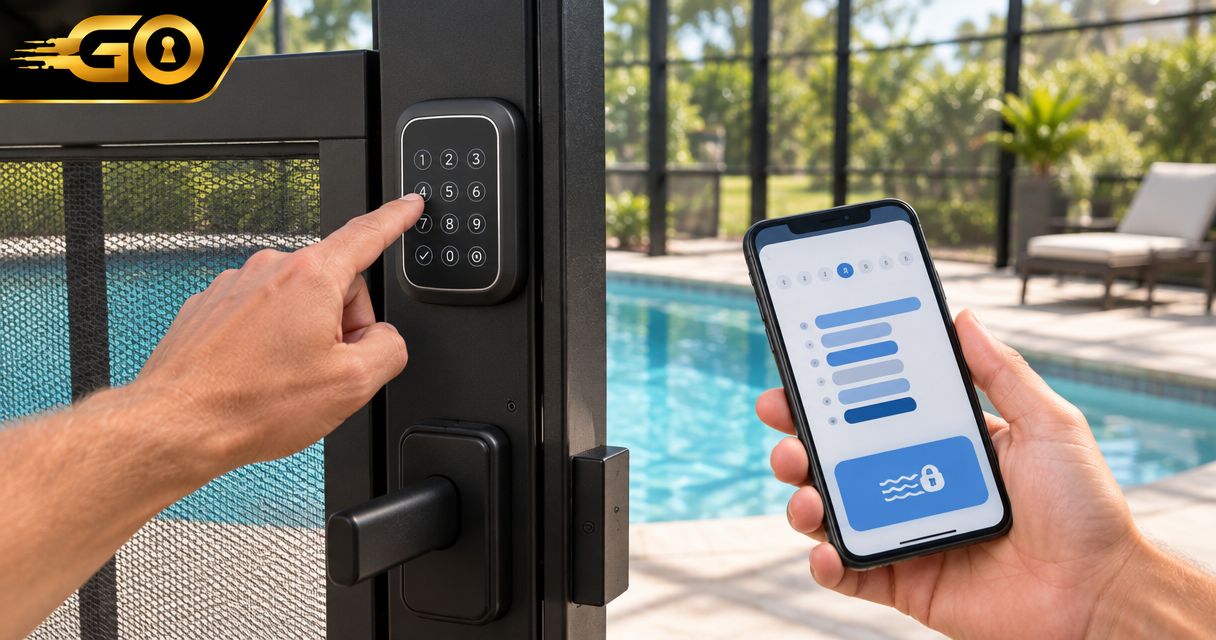
Instead of manually changing pool-gate access each day, connect a compatible keypad lock to the pool enclosure gate schedule through timed entry-code permissions. Schedule who can enter—not a period when the gate stays unlocked—and preserve the gate’s required closing, latching, and exit functions.
TL;DR
- To connect keypad lock to pool enclosure gate schedule settings, confirm the exact hardware supports timed entry codes.
- Keep scheduled entry permissions separate from gate closing, latching, and safe exit.
- GO Locksmith handles confirmed mechanical locksmith services, not electronic access-control installation or repair.
- Test code acceptance, expiration, gate closure, and exit operation before relying on the schedule.
Why this matters
A pool’s opening hours and its gate’s security are different things. Allowing an authorized code during swimming hours does not require leaving the entrance unlocked throughout those hours.
A keypad alone does not establish scheduling capability. A mechanical combination lock has no electronic clock, while an electronic keypad’s scheduling features depend on its exact model and management system.
GO Locksmith is a fit for homeowners needing mechanical lock repair or replacement, not electronic access-control integration. Review the confirmed locksmith services before requesting work; this guide does not establish pool-gate hardware compatibility or installation service.
Before you start
- Identify the equipment and permissions. Gather the lock model, controller or gateway details if present, manufacturer instructions, and authorized administrator access. For a shared pool, obtain the property manager’s approval before changing access.
- Confirm the gate’s suitability. Verify that the complete hardware arrangement is approved for its outdoor exposure and pool-barrier application. Have the responsible building or pool-safety authority resolve questions about barrier requirements and emergency exit before programming.
- Check the non-obvious limitation. Determine whether the system schedules individual codes or instead unlocks the entire entrance. Also establish whether schedules run locally or require a connection. Do not substitute an automatic unlock period for timed code access.
Do not begin by replacing the latch, drilling the gate, or changing exit hardware. A scheduling project is not permission to modify a safety barrier, and a lock intended for an exterior house door is not automatically suitable for an exposed enclosure gate.
Choose the right scheduling method
The useful distinction is between a code that works during an approved window and hardware that remains unlocked during that window. Only proceed with a method whose documented behavior preserves the required barrier and exit functions.
| Method | Best for | Benefit | Limitation or reason to stop |
|---|---|---|---|
| Recurring code schedule | Repeating pool hours on a compatible system | Restricts a designated credential to approved days and times | Requires documented scheduling support and correct clock settings |
| Date-limited code | A permitted visit or temporary authorization | Gives a credential a defined validity period | Does not necessarily support recurring daily hours |
| Calendar-driven credential integration | Properties with a documented connection between scheduling software and access hardware | Reduces separate updates when an approved event changes | Adds integration, synchronization, and cancellation dependencies |
| Scheduled unlocked mode | Not recommended by this guide for a pool enclosure | Removes the need to enter a credential during the selected period | Can leave entry unrestricted; do not treat it as a substitute for scheduled credentials |
Use the simplest documented method that meets the property’s approved access rules. A recurring code schedule avoids an external calendar dependency, but it still needs clock checks and testing. Calendar integration adds flexibility only when the actual systems support it.
Establish the gate and clock settings
The following steps describe configuration decisions, not a particular manufacturer’s interface. Button names and menu labels vary; use the exact instructions for your model rather than treating generic menu wording as a programming sequence.
- Record the current arrangement. Note the model, firmware information where accessible, existing access groups, and current operating mode. Keep credentials and administrator details out of shared maintenance notes.
- Verify normal gate operation. With the area supervised, check that the gate closes and latches without being pulled shut. Confirm that permitted exit operates as required. Stop if the gate drags, fails to latch, or presents an exit problem.
- Verify time settings. Check the controller’s displayed local date, time, time zone, and daylight-saving behavior against the manufacturer’s instructions. Establish which device supplies the clock used to evaluate access permissions.
- Confirm connection requirements. Identify whether code updates require a local connection, a gateway, or an online service. Read the documented behavior for lost communication and loss of power; do not assume the keypad retains its schedule.
Expected result: You know which device controls timing, how updates reach the gate, and whether the existing hardware operates correctly. If those points remain unresolved, stop before creating a schedule.
A code schedule cannot correct a sagging gate or a misaligned latch. For the general distinction between a repairable lock problem and replacement, see repairing versus replacing an exterior door lock; pool-gate suitability still requires a separate assessment.
Configure the entry permission
Start with a designated test credential rather than changing every resident’s access at once. Leave existing authorized arrangements unchanged until the proposed schedule passes testing and the property’s responsible person approves deployment.
- Define approved access. Write down who needs entry, which days apply, the opening and closing boundaries, and any temporary dates. Separate resident, visitor, and maintenance permissions where the system supports distinct credentials.
- Create the credential restriction. Following the model’s documented procedure, assign the test code its permitted hours or validity period. Do not use an administrator credential as the test code.
- Check overlapping permissions. Review whether the same credential also belongs to an unrestricted group or has another active permission. A restricted schedule is ineffective if another applicable rule still grants entry.
- Save and confirm delivery. Complete the manufacturer’s required save, synchronization, or local-transfer process. Confirm that the permission reached the device responsible for the gate, rather than merely appearing in a draft on your phone.
Expected result: A designated entry code has a defined permission window, and the gate has received that setting. No setting intentionally holds the entrance open or alters required exit operation.
The workflow has four separate checkpoints: Hardware check, Clock settings, Code schedule, and Gate testing. Completing the software settings does not replace the final physical check.
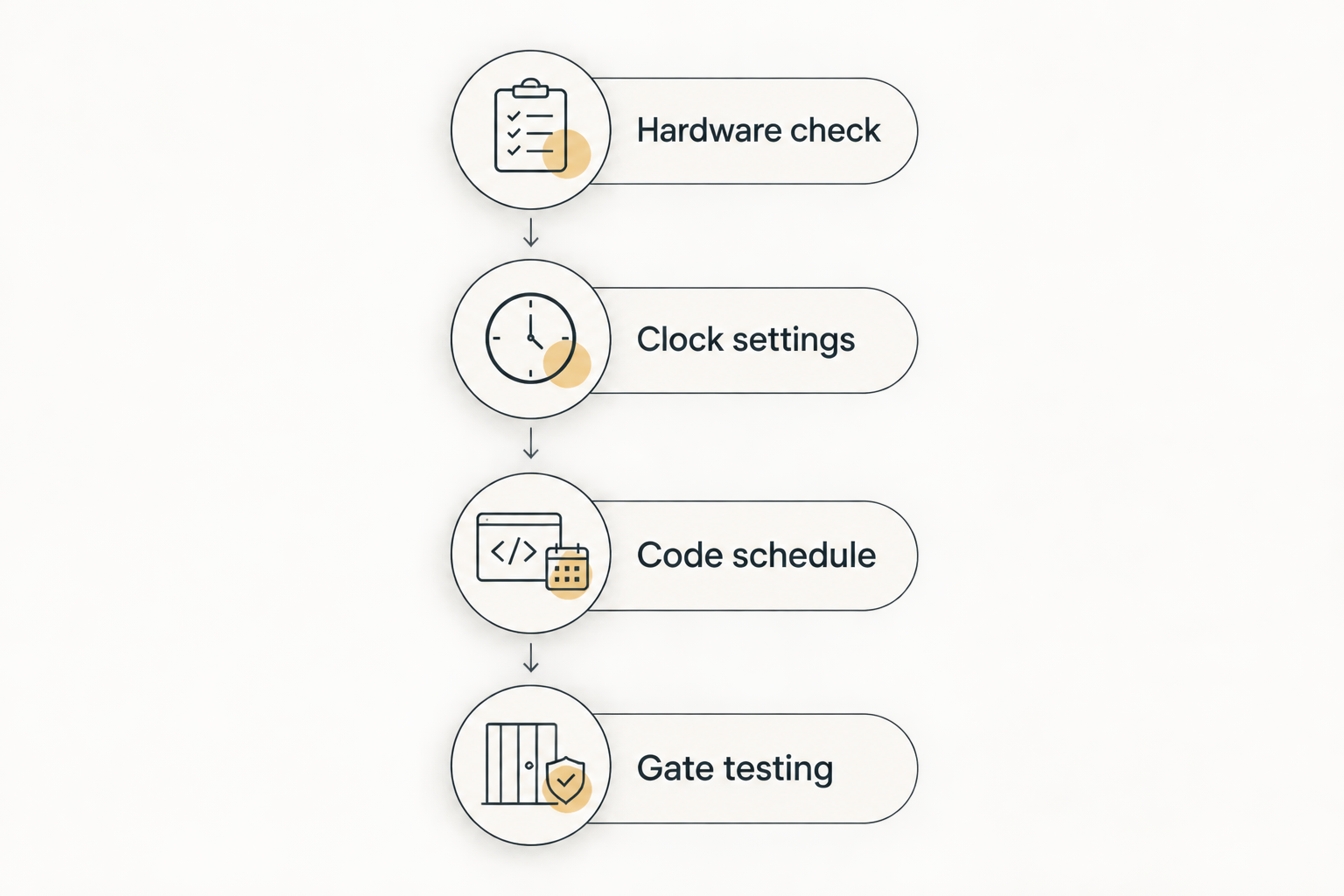
Confirm both the programmed permission and the gate’s physical operation.
Validate the complete gate workflow
Test from the normal approach to the gate with an authorized adult supervising the area. Keep an approved means of access available so testing does not strand anyone or require propping the barrier open.
- Check permitted entry. During the approved window, use the test credential and confirm normal entry. Close the gate behind you and verify that it latches again.
- Check denied entry. Outside the approved window, confirm that the same credential no longer grants entry. Use a temporary test window if the manufacturer supports one; do not change the system clock to simulate expiration.
- Check both schedule boundaries. Verify the start and end behavior, including the intended weekday and any overnight window. Determine how the system interprets a period that crosses midnight from its documentation.
- Check exit independently. Confirm that ending an entry permission does not interfere with required exit. For loss-of-power or communication testing, follow the manufacturer’s procedure and use a qualified access-control professional where needed.
Expected result: The test credential works only when authorized, the gate closes and latches after passage, and required exit remains functional. Record the test outcome without recording the usable code in a public log.
Do not deliberately disconnect safety-related equipment or disable a shared entrance to test a theory. Unclear failure behavior is a reason to involve the equipment provider, not to experiment on an occupied pool enclosure.
Update access when the pool schedule changes
A second workflow applies when pool hours change for a holiday, seasonal operating period, or approved temporary closure. The goal is to update credential permissions without changing the gate’s physical safety functions.
For a system with native scheduling, edit the applicable credential schedule using its documented controls. Confirm whether an exception overrides the recurring schedule or creates an additional permission; those are not interchangeable outcomes.
For a calendar-connected system, first verify that the specific integration supports the required action. Reading calendar events is not the same as creating, modifying, and revoking gate credentials.
Use this sequence for an authorized change:
- Update the approved source schedule.
- Confirm the correct gate and access group receive the change.
- Verify the updated permission at the access device.
- Test that a canceled or shortened permission no longer grants entry.
Expected result: The revised hours apply to the intended credentials, and previous permissions do not remain active unintentionally. If the system cannot confirm delivery, treat the update as unverified and follow the property’s approved operating procedure.
Troubleshooting
The code works after the closing time
Check the controlling device’s clock, time zone, and daylight-saving setting. Then review unrestricted credentials, overlapping access groups, and any manually enabled unlocked mode.
Confirm that the revised restriction reached the gate. A change visible in an app is not proof that the access device received it.
The code never starts working
Check the assigned weekday, validity dates, credential status, and gate assignment. Verify that the feature restricts code entry rather than scheduling a different device function.
Follow the documented synchronization procedure. Do not repeatedly create replacement codes before identifying why the original permission failed.
The keypad accepts the code, but the gate will not open
Stop forcing the handle or latch. Check for visible obstruction without dismantling the hardware or changing the barrier.
An accepted credential does not establish that the mechanical release is working correctly. Have the appropriate hardware or access-control professional distinguish an alignment problem from an electronic release fault.
The gate does not latch after someone enters
Treat this as a barrier problem, not a scheduling problem. Follow the property’s pool-safety procedure and arrange assessment of the closing and latching hardware before relying on the entrance.
Do not compensate by lengthening an unlock period, tying back the latch, or propping the gate open.
The schedule stops matching after a connection problem
Check the manufacturer’s documented offline behavior and the last confirmed update. Establish whether the device uses stored permissions or depends on a connected service.
After communication returns, confirm synchronization and repeat the permission tests. Restored connectivity alone does not verify the current schedule.
Customize your workflow without weakening the barrier
Where supported and authorized, separate recurring access from temporary visitor or maintenance permissions. Individual credentials make selective changes possible, but they also require someone to remove permissions that are no longer needed.
Keep a short maintenance record covering the responsible administrator, hardware model, approved hours, last successful test, and escalation contact. Store credential secrets separately with access limited to authorized people.
For electronic scheduling or integration, contact the equipment manufacturer or a qualified access-control provider. GO Locksmith does not install or repair electronic access-control systems; ask separately about confirmed mechanical locksmith services without assuming pool-gate compatibility.
FAQ
Can any keypad lock follow a pool enclosure gate schedule?
No. The exact lock or its controller must support timed credential permissions, and the hardware must be suitable for the gate’s application. A keypad by itself does not establish either capability.
Should the pool gate automatically unlock when the pool opens?
Do not substitute scheduled unlocked mode for controlled entry. Use documented credential scheduling only where it preserves the required pool barrier and exit functions, and have the responsible authority resolve compliance questions.
Do I need Wi-Fi to schedule a pool gate code?
That depends on the lock and controller. Check whether schedules operate locally and whether creating or changing them requires a connection, gateway, or connected service.
Can I connect the pool calendar directly to the keypad?
Only if the exact scheduling platform and access system have a documented integration that supports the required credential actions. Calendar visibility alone does not establish permission creation or revocation.
Will a scheduled code keep children out of the pool?
A scheduled code is not a substitute for a compliant pool barrier or active adult supervision. Gate hardware, barrier condition, credential handling, and required exit arrangements need separate attention.
What should I do if the gate stays unlocked after closing?
Follow the property’s pool-safety procedure and have an authorized person investigate. Check for unlocked mode, overlapping permissions, clock errors, and failed updates without obstructing required exit.
Does GO Locksmith connect pool gates to electronic schedules?
GO Locksmith does not install or repair electronic access-control systems. Contact the equipment manufacturer or a qualified access-control provider for scheduling and integration work.
One last thing
An expired code and a secured gate are different outcomes. Finish every schedule test by watching the gate close and checking that it latches; a correctly rejected credential cannot secure a gate that remains physically open.
For a separate mechanical lock repair or replacement question in Fort Myers or the confirmed Southwest Florida service areas, call (239) 412-1101 to discuss the job. Hours are Sunday–Thursday, 7:00 AM–11:00 PM; Friday, 7:00 AM–4:00 PM; Saturday closed.