Blog ·
How to connect a smart lock to a Google Nest video doorbell
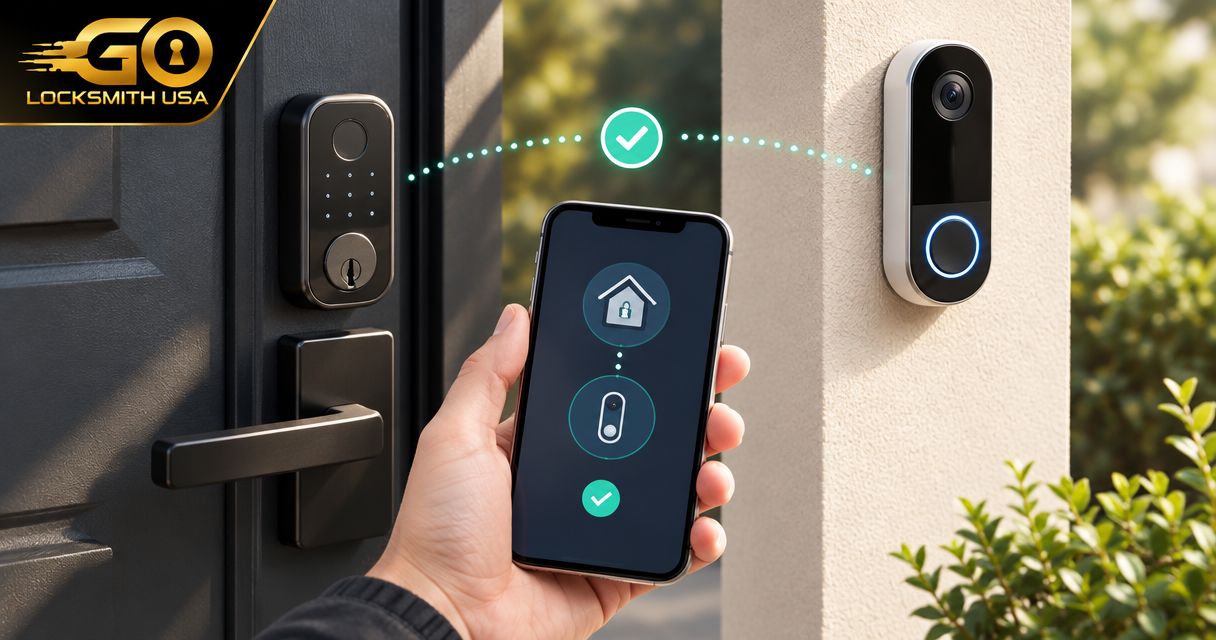
Instead of opening separate apps whenever someone rings, add your Nest doorbell and a compatible smart lock to the same Google Home household so you can check the visitor and control supported lock functions from one place. You do not pair the lock directly with the doorbell, and adding both devices does not create an automatic unlocking rule.
TL;DR
- To connect smart lock to Nest doorbell, add compatible devices to Google Home—not directly to each other.
- Google Home lock controls depend on the exact lock model, connection method, and supported features.
- Keep visitor verification and unlocking separate; a doorbell ring is not permission to enter.
- GO Locksmith handles confirmed residential lock services, not Google account or app support.
Why this matters
A video doorbell and a smart lock do different jobs. The doorbell lets you see or speak to a visitor; the lock controls physical entry. Putting both in Google Home can reduce app switching, but shared app access is not the same as a direct device integration.
Confirm the lock's Google Home support before changing settings or buying connection hardware. A lock that works through its own phone app does not necessarily expose its controls to Google Home. Likewise, a working Nest doorbell does not establish compatibility with another manufacturer's lock.
If the problem is a sticking deadbolt rather than an app connection, GO Locksmith provides residential lock repair, replacement, and rekeying. Resolve the physical fault before testing remote operation.
Before you start
- Accounts and permissions: Have access to the Google Home household containing the doorbell, the lock owner's account where required, and permission to add devices. Use the manufacturer's setup instructions for your exact lock model.
- Connection materials: Have your phone, the required network connection, and any manufacturer-specified bridge or compatible Matter controller ready. Keep pairing information private, including a Matter setup code if your lock uses one.
- The easy-to-miss limitation: Check both compatibility and available controls. Google Home support does not guarantee an unlock button beside the doorbell video, voice unlocking, doorbell-triggered routines, or every feature in the manufacturer's app.
Keep your normal authorized entry method accessible during setup. Do not rely on an untested app connection as your only way back inside.
Choose the supported connection route
Use the route documented for your lock, not whichever option appears easiest in the app. These are connection methods, not promises that every smart lock supports them.
| Connection route | Best for | What it does | Advantage | Limitation |
|---|---|---|---|---|
| Manufacturer account linking | Owners whose exact lock supports Works with Google Home | Connects the manufacturer's supported devices through an account authorization | Uses the manufacturer's documented Google Home integration | Available controls and connection requirements depend on that integration |
| Matter setup | Owners whose exact lock supports Matter and Google's required setup | Adds the lock through its supported Matter connection | Provides another supported route into Google Home | Requires the right controller and, for Thread devices, a compatible Thread border router |
| Separate apps | Owners whose lock lacks a supported Google Home route | Keeps the doorbell and lock in their respective apps | Avoids forcing an unsupported connection | Requires switching apps to review the visitor and operate the lock |
Do not treat the Nest doorbell as the lock's bridge or Matter controller. Check Google's and the lock manufacturer's hardware requirements separately. Sharing a brand ecosystem or wireless network does not replace those requirements.
Doorbell and household setup
Start with the doorbell. Troubleshooting the lock is harder when you have not established which account and household contain the camera.
- Open Google Home and select the household where you want both devices.
- Find the Nest doorbell and open its live video. Confirm that you are viewing the correct entrance and can use the doorbell's available controls.
- If the doorbell is not there, follow Google's setup instructions for its exact generation. Some existing Nest installations involve the Nest app; do not factory-reset or transfer a working device merely to follow a generic guide.
- Check that the account performing setup has permission to add devices to the intended Google Home household.
- Give the doorbell a clear location-based name, such as Front Door Doorbell. Avoid using the same name for the lock.
Expected result: You can identify the correct entrance, open its live video, and confirm the household receiving the lock.
Do not continue until the doorbell works independently. A missing camera feed is a doorbell, account, or network issue—not evidence that the lock needs to be paired again.
Smart lock connection
First confirm that the lock operates through its documented setup method. Then use either account linking or Matter, according to the manufacturer's instructions.
Manufacturer account linking
- Complete the lock manufacturer's initial setup. Confirm that the correct lock appears in its app and that its required bridge or network connection is working.
- In Google Home's device-add flow, choose Works with Google Home when that is the connection route specified by the manufacturer. Menu placement varies by app version.
- Select the supported manufacturer or service named in the lock's instructions. Do not select a similarly named service as a substitute.
- Sign in to the account that owns the lock and review the requested permissions before authorizing the connection.
- Assign the imported lock to the intended household and room if Google Home offers those choices. Use a distinct name, such as Front Door Lock.
Expected result: Google Home displays the supported lock device and its available controls. If the lock does not import, stop and check the exact model's integration requirements rather than repeatedly resetting it.
Matter setup
- Confirm that the exact lock model supports Matter. Check the manufacturer's instructions for required firmware, setup order, and any controller requirements.
- Prepare the compatible Google Home Matter controller. If the lock uses Matter over Thread, confirm that the required Thread border router is present and configured.
- Start Google Home's Matter device setup and follow the prompts for the lock's setup code. The code usually comes from the device or its documented setup materials.
- If the lock already belongs to another Matter ecosystem, use that ecosystem's device-sharing process where supported. Do not assume the original setup code alone will add an already commissioned lock.
- Complete the household assignment and inspect the controls Google Home actually provides.
Expected result: The lock appears in the selected Google Home household through its supported Matter connection.
Avoid adding the same lock through multiple routes unless its manufacturer documents that arrangement. Duplicate entries make it harder to tell which connection you are testing.
Visitor and lock verification
Test the complete workflow while you are at home, with another authorized entry method available. Keep the door open for the initial bolt test and keep fingers clear of moving hardware.
- Check video: Open the Nest doorbell feed and confirm that it shows the entrance controlled by the lock.
- Check status: Inspect the lock's reported state. A locked bolt indication does not necessarily mean the door is closed; that requires suitable door-position sensing.
- Test control: Use a supported lock command and watch the physical bolt. Test unlocking only if your exact integration provides it and you understand any authentication requirement.
- Verify entry: Ring the doorbell, review the visitor, and deliberately open the supported lock control. If Google Home does not expose that control, use the manufacturer's app.
Expected result: You know where to view the visitor, where to operate the lock, and which actions your setup supports. An absent unlock shortcut is not automatically a setup failure.
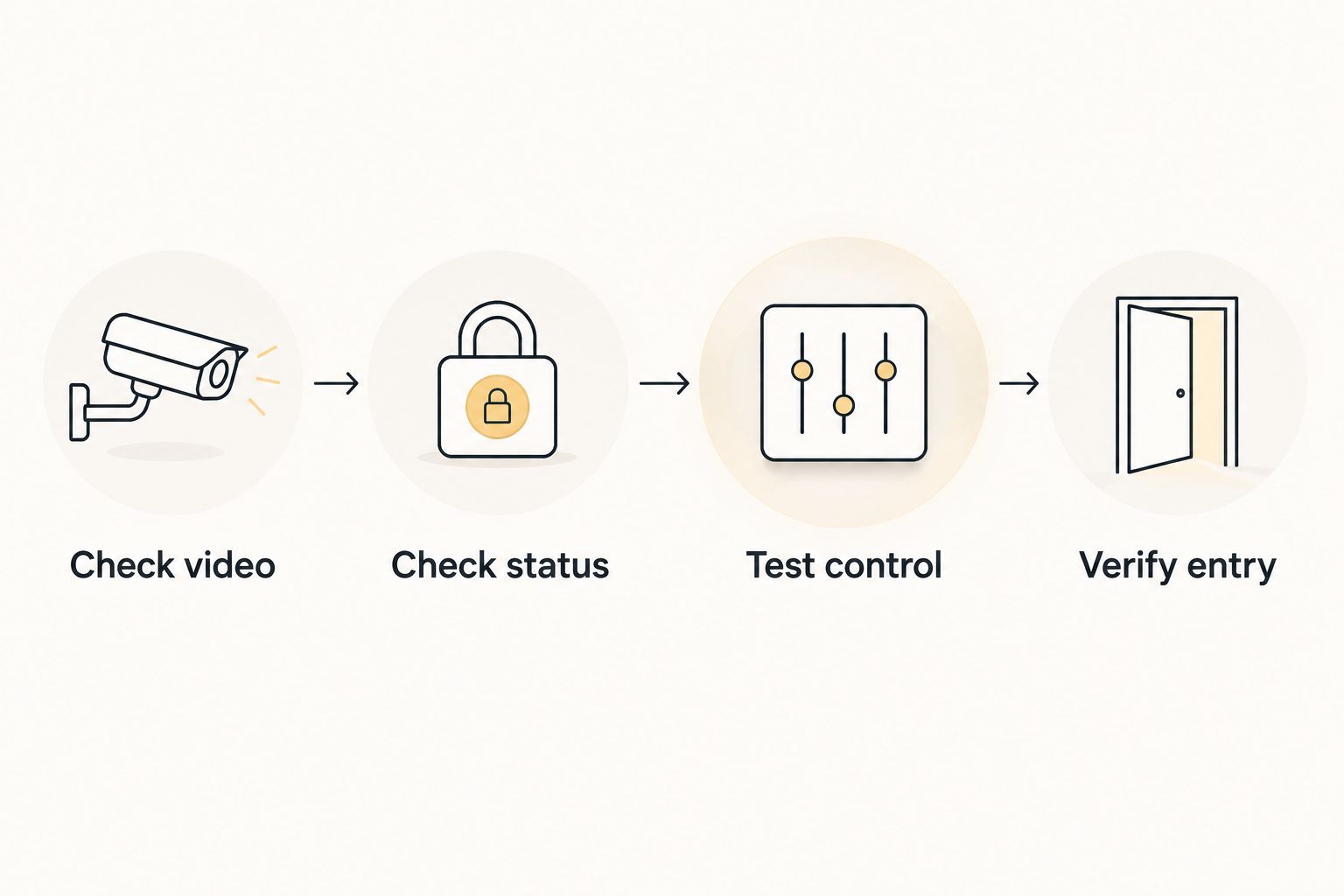
Verify the visitor before deliberately operating the lock.
Repeat the lock test with the door closed only after confirming that the bolt moves freely. If you must lift, pull, or push the door to make it lock, investigate alignment instead of changing app settings.
Another workflow: doorbell alert, then deliberate entry
The useful adjacent workflow is not automatic unlocking. It is receiving a doorbell alert, checking the visitor, and then choosing whether to grant entry.
Enable the doorbell's supported notifications in its app and allow the necessary phone notification permissions. Test a real button press rather than assuming a saved setting proves alerts are reaching your phone.
When an alert arrives:
- Open the doorbell video and identify the visitor.
- Confirm that the person needs access now.
- Open the supported lock control or manufacturer app.
- Deliberately unlock only after checking the visitor and entrance.
- Confirm the door is secured again afterward.
Do not use a doorbell press or motion event as permission to unlock. Those events show activity, not authorization. They also do not establish that the person at the entrance is the expected visitor.
Keep household sharing separate from guest entry. Before inviting someone into Google Home, review the permissions that invitation grants. If you only need to give a guest lock access, use the lock manufacturer's documented guest-access features where your model supports them.
Troubleshooting
The lock works in its own app but does not appear in Google Home
Check the exact model's Google Home support and confirm that you linked the account containing that lock. A manufacturer account can work correctly while a particular model remains unsupported by its Google integration.
For Matter setup, check controller requirements and whether the lock is already commissioned elsewhere. Follow the documented sharing process before considering a reset.
The doorbell and lock appear in different households
Confirm the selected household and the account used during each setup. Review the device's documented household-assignment process before removing anything.
Do not create extra households just to make a missing device visible. That can leave household members looking at different devices and permissions.
You can see the lock but cannot unlock beside the video
Check the controls supported by the exact lock integration and viewing interface. Device visibility does not guarantee an unlock control on the doorbell screen.
Use the manufacturer's app when that is the documented control path. Do not weaken account security or install an unofficial connector merely to obtain a shortcut.
Commands fail or the lock appears offline
Check the lock's power, its required bridge or controller, and the relevant network connection. Confirm whether the manufacturer's app also reports a problem; that helps distinguish a lock connection fault from Google Home account linking.
Restart equipment only as its instructions recommend. Save factory resets for a documented recovery procedure because they can erase working configuration and access settings.
The motor runs but the bolt does not secure the door
Stop repeating remote commands and check the lock's physical operation using the manufacturer's instructions. Door alignment, a binding bolt, or an obstructed strike opening is not fixed by relinking an account.
GO Locksmith provides residential lock repair and replacement. Ask about the specific mechanical problem without assuming support for a particular smart lock model or app integration.
Customize your workflow
Once the basic connection works, make everyday use clearer rather than adding more automation. Use distinct device names, review household access, and check which notifications you actually need.
For connection planning, the guide to Wi-Fi versus Bluetooth smart lock connectivity covers a related distinction. Bluetooth operation near the door and remote operation are different capabilities; check your model's requirements for each.
Keep a private household note identifying the app used for video, the app used for unlocking, and the authorized backup entry method. Do not put passwords, entry codes, or Matter pairing codes in a publicly shared document.
FAQ
Can I connect any smart lock to a Nest doorbell?
No. You generally add a compatible smart lock and the Nest doorbell to Google Home separately rather than pairing them directly. Check the exact lock model's supported integration and required hardware.
Will Google Home show an unlock button beside my Nest doorbell video?
Not necessarily. The controls depend on the exact lock, its integration, and the interface you are using. Use the manufacturer's app if that is the documented unlocking method.
Does my Nest doorbell act as a smart lock hub?
Do not treat a Nest doorbell as the lock's hub or Matter controller. Check the lock manufacturer's and Google's requirements for any bridge, controller, or Thread border router.
Can a doorbell ring automatically unlock my front door?
A doorbell ring should not authorize entry. Review the visitor and deliberately use a supported lock control instead of building an unlock rule around motion or a button press.
Why does my smart lock say locked when the door is open?
A lock can report that its bolt is extended without confirming that the door is closed. Door-position reporting requires suitable sensing supported by the device and integration.
Do I need the Nest app or Google Home for this setup?
The required app depends on the doorbell generation and its existing setup. Follow Google's instructions for that model, and do not reset a working doorbell just to match a generic setup path.
Can GO Locksmith fix my Google Home connection?
Google account linking and app troubleshooting are not confirmed GO Locksmith services. GO Locksmith provides confirmed residential services including lock repair, replacement, and rekeying; describe the physical lock problem when calling.
One last thing
A camera can show who is outside, but it cannot prove the deadbolt entered the strike. Watch the physical lock during testing and distinguish bolt status from door position. That check matters more than having every control on one screen.
If the deadbolt sticks or the door no longer locks properly, call GO Locksmith at (239) 412-1101 to discuss the mechanical problem and request service. Hours are Sunday–Thursday, 7:00 AM–11:00 PM, and Friday, 7:00 AM–5:00 PM; Saturday is closed.