
Blog ·
How to connect a commercial keypad lock to a visitor sign-in system
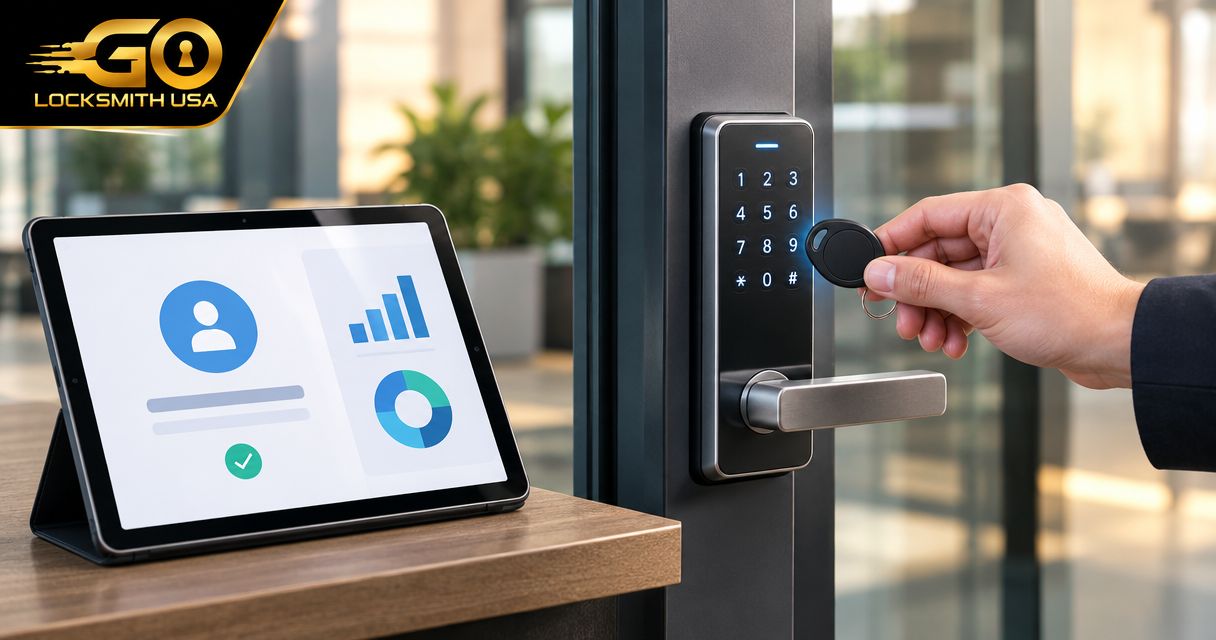
Instead of manually copying visitor details into a door-access system, connect a keypad lock to a visitor sign-in system through a manufacturer-supported integration or a documented software interface. The workflow should issue a visitor-specific credential only after approval, limit access to the intended door and visit window, and remove access when the visit ends.
TL;DR
- To connect keypad lock to visitor sign-in system, first verify supported credential creation, scheduling, and revocation.
- Visitor sign-in records attendance; approval determines whether someone receives door access.
- A standalone keypad without a supported integration requires manual credential management.
- GO Locksmith provides confirmed mechanical commercial locksmith services, not electronic access-control installation or repair.
Why this matters
A visitor checking in is not the same as a visitor being authorized to enter. If your automation treats every submitted sign-in form as permission, someone can receive access before a host approves the visit.
The connection also needs to work in reverse. Creating a credential without a dependable way to expire or revoke it leaves an unfinished access workflow.
This guide covers the planning, configuration sequence, and acceptance tests for a supported connection. Exact screens and button names depend on your visitor platform and lock-management software; follow their current documentation rather than assuming the labels are interchangeable.
GO Locksmith is a mobile locksmith for businesses needing mechanical lock and door-hardware service, not electronic access-control integration. Use your system vendors or an appropriate access-control specialist for the software connection, controller configuration, and electronic hardware work.
Before you start
- Collect system details and authorized access. Identify the visitor platform, exact lock model, associated controller or gateway, and lock-management platform. Arrange administrator access through the people responsible for those systems.
- Confirm the complete connection. Obtain documentation covering credential creation, supported schedules, status reporting, and revocation for your specific equipment. A keypad accepting PINs does not establish that software can create those PINs remotely.
- Check the hidden dependency: credential delivery. Confirm whether access changes must synchronize through a gateway or controller, how synchronization is reported, and what happens while equipment is offline. A successful software request is not proof that the door has received the change.
Assign an owner for the integration and a separate contact for reception or building operations. Agree on a supervised-entry fallback before testing, and keep a responsible person available at the test door.
Do not alter exit hardware, fire-alarm connections, or emergency-release behavior as part of this workflow. Have any proposed hardware changes reviewed by the appropriate professional and building authority where required.
Connection method
Choose the connection method before building the visitor rules. Use a native integration when both vendors document support for your exact configuration; use a custom connection only when the necessary operations are documented.
| Method | Best for | Advantage | Limitation |
|---|---|---|---|
| Native integration | Systems with a documented vendor-supported connection | Uses the vendors’ defined setup and supported workflow | Supported events, doors, and credential controls depend on that integration |
| Documented API or webhook connection | Organizations with technical ownership and supported interfaces | Lets the implementation map approved visitor events to access operations | Requires development, secure authentication, error handling, and ongoing maintenance |
| Manual credential management | Standalone keypads or systems without a supported connection | Keeps access decisions under staff control without an unsupported software connection | Staff must create, communicate, and remove credentials; this is not automatic integration |
A webhook reports an event to another system. An API provides defined operations that software can request. Having either feature does not establish that the complete visitor-access workflow is supported.
For example, receiving a visitor approval event is useful only if the destination can perform the required credential operation. Confirm both sides before committing to a connection method.
Visitor approval configuration
Separate attendance from permission
- Identify the documented event that represents authorization. This might be a host approval or an approved invitation, depending on your platform. Do not substitute a form submission merely because it is easier to trigger.
- Define which visitor categories qualify for access. Keep visitors requiring an escort outside unattended-entry automation unless your approved policy explicitly permits it.
- Map each eligible visit to its authorized door or access group. Use the narrowest scope supported by your system that meets the visit’s requirements.
- Record the visit’s start, end, cancellation state, and destination. Establish which system owns each value so conflicting updates do not silently change access.
- Define what happens when approval is withdrawn. The workflow needs a removal path, not just an issuance path.
Expected result: An unapproved visitor can appear in the visitor register without receiving a door credential. An approved test visit identifies the intended door and access window before any credential is created.
Keep visitor identity and door permission as separate records linked by the visit identifier. This makes it possible to change a visit without treating every change as a new person who needs another credential.
Define the access lifecycle
Write down these stages before configuring automation:
- Approval: The responsible person authorizes the visit.
- Credential creation: The access platform creates the permitted credential and reports its status.
- Delivery: The approved visitor receives access instructions through the selected channel.
- Revocation: Cancellation, checkout, or the end of the authorized window removes access according to the supported system behavior.
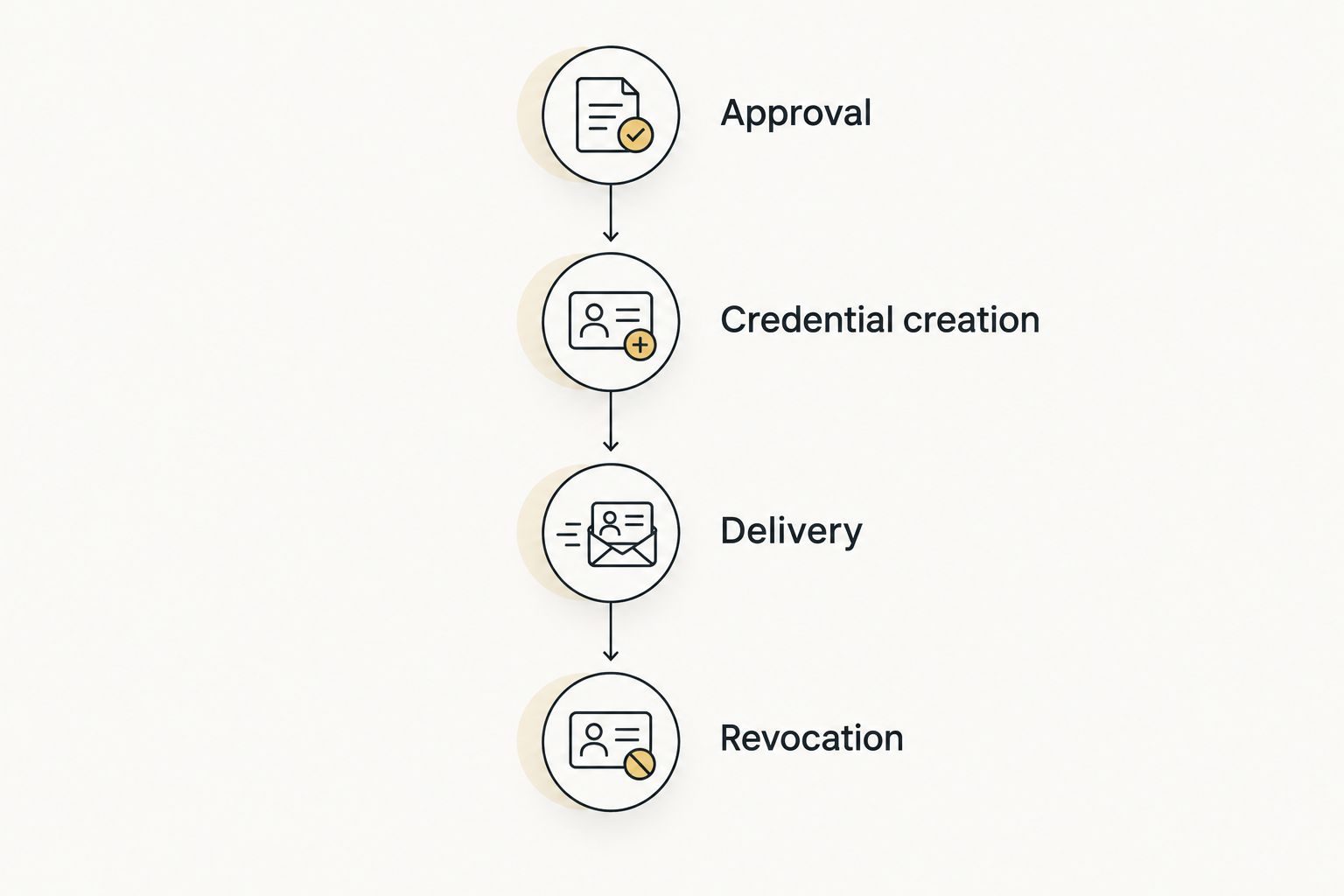
The workflow is incomplete until access removal is configured and tested.
A visitor notification belongs after the credential reaches the documented readiness state. If your platform cannot report that state, establish a supervised verification process instead of describing the credential as ready automatically.
Credential and delivery configuration
Map the approved visit to door access
- Connect the systems using the vendor’s documented authentication method. Grant only the permissions required for the supported operations, and keep integration secrets out of visitor messages and shared documents.
- Map the visit identifier to the credential record returned by the access platform. Retain that association for later updates and removal.
- Map the authorized door and access window. Confirm the time zone used by each system and how each represents the end of a visit.
- Configure credential generation according to the lock platform’s documented rules. Do not assume a PIN length, reuse policy, or capacity that your equipment has not confirmed.
- Configure duplicate-event handling. Repeated delivery of the same approval event should not create additional credentials for the same visit.
- Configure the visitor notification to run only after the required access operation succeeds. Include the correct entrance, authorized visit window, and a contact for entry problems.
Expected result: An approved test visit produces a traceable credential for the intended access scope. Replaying the same event does not produce an unintended additional credential.
Do not use one permanent shared PIN as a substitute for individual credential management. A shared code does not let you revoke one visitor’s access independently of everyone else using it.
Keep sensitive information out of routine records
Store only the visitor information required for your documented operational purpose. Keep full credentials and authentication secrets out of ordinary troubleshooting screenshots, email threads, and broadly accessible logs.
Where the platforms support it, log the visit identifier, credential reference, operation status, and error details rather than the usable PIN. Restrict administrative access to the people responsible for visitor permissions and system support.
Revocation and acceptance testing
Prove the complete workflow
- Create an authorized test visit for a designated test door. Confirm the credential works only within the access scope the equipment supports and you configured.
- Test entry before the permitted window, during it, and after it. Verify the physical result rather than relying exclusively on a scheduling screen.
- Cancel a separate test visit and confirm its credential is removed or disabled through the supported mechanism. Test checkout-based removal separately if you intend to use it.
- Resubmit the same approval event and verify duplicate handling. Then update the visit end time and check that the existing credential follows the documented update behavior.
- Test the documented offline scenario with your system specialist. Confirm what happens to issuance, scheduled expiration, remote revocation, and notifications when the relevant connection is unavailable.
- Verify the staff fallback and escalation route. Ensure reception knows how to recognize a failed issuance without sending a visitor an unconfirmed credential.
Expected result: The test record shows approval, issuance, delivery, and removal outcomes, with the physical door behavior checked where applicable. Keep the workflow supervised until every required outcome passes.
A software success message is not a physical-door test. Also distinguish a credential-use event from proof that someone entered: whether a system records an unlock command, latch activity, or door opening depends on its hardware and reporting capabilities.
Variant: update access when a visit changes
A second workflow handles rescheduling, early departure, and cancellation. Use it only when both systems support the necessary update events and credential operations.
- Rescheduled visit: Update the existing credential’s permitted window using its stored reference. If the platform requires replacement, verify that the previous credential is removed before treating the replacement process as complete.
- Canceled visit: Request revocation and record the resulting status. Alert the responsible staff member if removal fails or remains unconfirmed.
- Early checkout: Apply your approved departure policy. Do not infer that leaving a sign-in screen open means someone is still authorized to enter.
- Extended visit: Require the designated approval before extending access. A visitor editing their own details should not automatically extend door permission.
Keep the original visit identifier through these changes. Otherwise, a reschedule can be mistaken for a new visit while the old credential remains active.
Expected result: Changes modify or remove the correct access record without leaving an earlier credential behind.
Troubleshooting
Approval arrives, but no credential appears
Check the integration’s authentication status, permissions, door mapping, and documented error response. Confirm that the source event represents approval and contains the required visit data; do not repeatedly replay it until duplicate handling is verified.
A credential exists, but the keypad rejects it
Check the exact door assignment, permitted window, credential format, and synchronization status against the manufacturer’s documentation. If the platform reports success but the physical result disagrees, involve the access-system specialist rather than changing unrelated lock settings.
Access starts or ends at the wrong time
Compare the visitor platform’s time zone, the access platform’s time zone, and the transmitted timestamp. Check daylight-saving handling and whether the destination interprets an end time differently from the source.
One visitor receives multiple credentials
Trace the visit identifier through repeated notifications, edits, and retried requests. Make the workflow check for an existing credential association before creating another, and review unintended credentials through the platform’s supported removal process.
A canceled visit still has access
Check whether revocation reached the access platform and whether it reached the door or controller. Follow the documented offline behavior and escalation plan; do not assume that deleting a visitor record also deletes the associated door credential.
Customize your workflow
Expand only after approval, issuance, and removal work reliably. Useful additions include host notifications for failed issuance, an exception queue for unconfirmed removals, and separate access rules for escorted visitors.
Keep mechanical door problems separate from software problems. A door that does not close or latch correctly needs hardware attention; successful credential automation does not resolve that condition.
For mechanical commercial lock repair, replacement, rekeying, push bars, or door closers, GO Locksmith serves Fort Myers, Cape Coral, Lehigh Acres, Estero, Bonita Springs, and Naples. Electronic access-control installation, repair, and integration are outside its confirmed services.
FAQ
Can any commercial keypad lock connect to a visitor sign-in system?
No. The exact lock and management platform must support a documented connection that can perform the required credential operations. A standalone keypad accepting PINs does not establish remote integration capability.
Should signing in automatically unlock the door?
Sign-in alone should not be treated as access approval. Base credential issuance on your documented authorization policy, and limit permission to the intended door and visit window.
Do I need an API to connect visitor registration to a keypad lock?
Not necessarily; a documented native integration can provide the connection. A custom workflow requires supported interfaces for the visitor events and the access operations you need.
Can the system send each visitor a different PIN?
Only if the lock platform and connection support individual PIN creation and delivery. Verify credential rules, scheduling, capacity, and removal behavior for your exact equipment before building the workflow.
Will visitor codes stop working if the internet disconnects?
Offline behavior depends on the lock, controller, and credential design. Confirm separately whether existing credentials work, scheduled expiration is enforced, and remote changes reach the door during an outage.
Does checking out automatically remove door access?
Only a supported and configured removal workflow makes checkout revoke access. Test the checkout event, the credential-removal operation, and the resulting door behavior rather than assuming the systems share that rule.
Does GO Locksmith install or connect electronic access-control systems?
No. GO Locksmith does not install or repair electronic access-control systems. Its confirmed commercial services include mechanical lock repair, replacement, rekeying, fresh installation, push bars, door closers, and lockout assistance.
One last thing
Test cancellation before inviting real visitors. A connection that creates access correctly but cannot remove it has failed the most important exit condition of the workflow.
For a mechanical commercial lock or door-hardware problem, call (239) 412-1101 to discuss the job and check availability. Hours are Sunday–Thursday, 7:00 AM–11:00 PM, and Friday, 7:00 AM–5:00 PM; Saturday is closed.