Blog ·
How to connect a smart lock to a Vivint security system
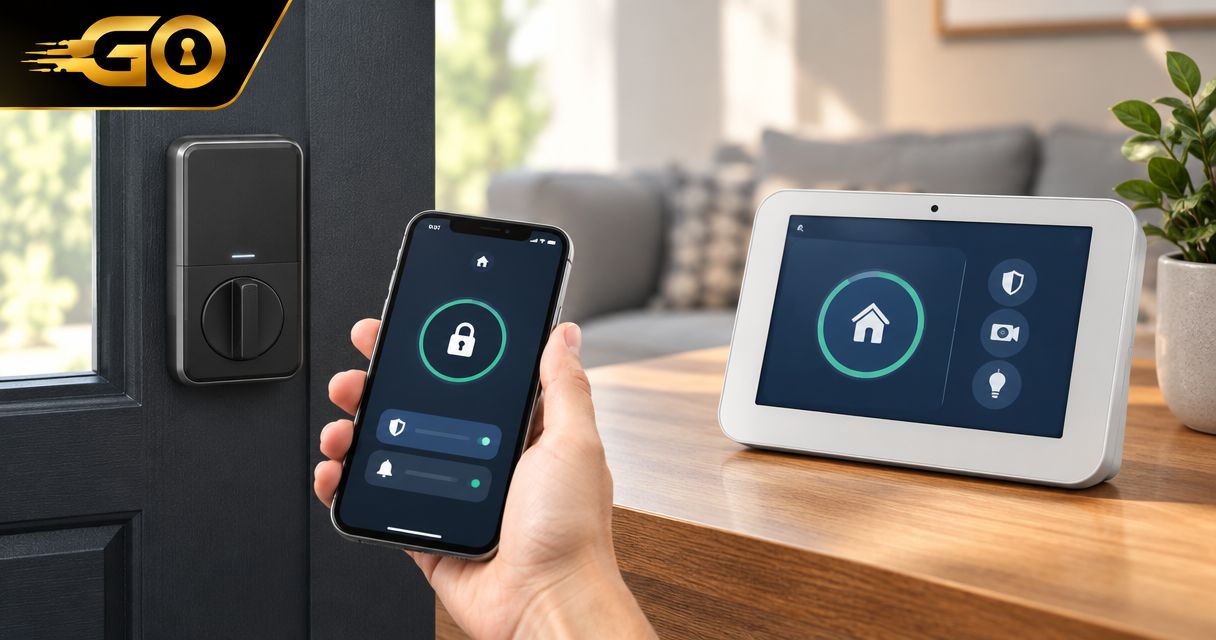
Instead of managing your door lock separately from your security system, connect a supported smart lock to Vivint through the enrollment process approved for your lock and panel. Confirm compatibility first, enroll the lock using its model-specific instructions, then test physical operation, system control, and access permissions before relying on the connection.
TL;DR
- To connect smart lock to Vivint security system hardware, confirm the exact lock model and panel compatibility first.
- Vivint enrollment requires the correct account permissions and the lock manufacturer’s pairing instructions.
- Test the deadbolt with the door open before testing remote locking with the door closed.
- GO Locksmith handles confirmed residential mechanical lock services; ask Vivint about security-system enrollment.
Why this matters
A smart lock can operate from its keypad yet remain disconnected from your security system. Likewise, a lock can appear in an app while its deadbolt catches against the door frame. Successful pairing and reliable door locking are separate checks. You need both.
Vivint supports compatible connected locks, but a wireless connection alone does not establish compatibility. A Wi-Fi, Bluetooth, or Z-Wave label is not enough to confirm that a particular lock will work with your panel and account.
For physical lock problems, GO Locksmith provides mobile residential lock repair, replacement, and rekey services. Keep that work separate from questions about Vivint account permissions, panel configuration, and device enrollment.
Before you start
- Identify the equipment. Find the lock’s exact manufacturer and model, your Vivint panel model, and the corresponding instructions. Ask Vivint to confirm support for that combination, including any account requirements, before changing settings.
- Have authorized access and a backup entry method. You need permission to manage devices on the Vivint account, physical access to the lock, its programming credentials when required, and batteries meeting the manufacturer’s instructions. Keep a working mechanical key accessible if the lock has a key cylinder.
- Check for an existing controller connection. A previously enrolled Z-Wave lock can require exclusion from its former network before joining another. Exclusion and factory reset are different procedures; do not reset the lock or erase access codes as your first troubleshooting step.
Keep the door open during setup and arrange a way to remain inside while testing. Do not post programming codes, account credentials, or photographs containing sensitive setup information in public support forums.
Lock and panel identification
Confirm the connection path
- Find the model information on the lock or in its documentation. Follow the manufacturer’s instructions for locating it rather than dismantling unfamiliar hardware.
- Record the Vivint panel model and identify the account authorized to manage it.
- Ask Vivint whether the exact lock is supported and whether enrollment is customer-accessible or requires support assistance.
- Obtain the enrollment instructions for that panel and lock combination. If they require restricted access, have Vivint handle that portion rather than guessing an installer code.
Expected result: You know that the equipment is supported, who can authorize enrollment, and which instructions apply.
Do not substitute instructions for a similar-looking lock. Models within the same product family can use different wireless technologies or programming sequences. The distinction matters before you press a programming button, not after an unsuccessful enrollment attempt.
Separate connectivity from compatibility
Use the connection type to identify the right documentation, not to assume support.
| Connection type | Best for | Advantage | Limitation for Vivint setup |
|---|---|---|---|
| Supported Z-Wave lock | Homeowners whose exact model is confirmed by Vivint | Can communicate through a compatible security-system controller | Z-Wave capability alone does not establish Vivint support |
| Wi-Fi lock | Homeowners using features supported by the lock’s own platform | Can provide network-connected functions through its supported setup | Joining your home Wi-Fi does not enroll the lock in Vivint |
| Bluetooth lock | Homeowners using supported nearby phone control | Provides a local wireless connection for supported functions | Bluetooth pairing with a phone does not establish Vivint integration |
These are connection categories, not interchangeable setup options. A lock can also support more than one wireless technology, so identify the actual model rather than relying on its packaging headline.
For more context on connection types, read the Wi-Fi versus Bluetooth smart-lock comparison. Confirm Vivint compatibility separately before choosing equipment.
Door preparation
Check the mechanical operation
- With the door open, operate the deadbolt using the lock’s normal manual control. Stop if it binds or requires force.
- Check that the lock has the batteries specified by its manufacturer and that the battery compartment is correctly secured.
- Complete any manufacturer-required installation or handing procedure before network enrollment. Handing teaches a supported lock which direction its bolt must move; the required procedure depends on the model.
- Close the door while remaining inside. Confirm that the deadbolt enters the strike opening without lifting, pulling, or pushing the door into position.
Expected result: The lock works normally before you ask Vivint to control it.
A deadbolt that only works with the door open has a physical problem to investigate. Pairing cannot correct a misaligned strike opening, a binding bolt, or an installation problem.
Do not drill, enlarge openings, or change hardware simply because the app reports a failed locking attempt. Identify the cause first, particularly on doors with specialized hardware or installation requirements.
Keep a recovery path
Before enrollment, decide how you will enter if the connection fails. Keep the mechanical key accessible where applicable, and do not remove a functioning entry method just to simplify the setup screen.
If you manage a rental or shared home, tell authorized occupants that you are changing the lock’s connection. Avoid deleting existing users until you understand whether their credentials are stored in the lock, managed through Vivint, or both.
Vivint enrollment and verification
Enroll the supported lock
- Open the enrollment instructions supplied for your Vivint panel. Start the authorized add-device process exactly as those instructions describe.
- If Vivint confirms that exclusion is necessary, complete the documented exclusion procedure before attempting inclusion. Follow the lock manufacturer’s required button sequence.
- Place the supported lock into its enrollment mode using the exact instructions for that model. Do not use an unrelated online reset sequence.
- Complete any identification or confirmation prompts shown by your system. If the instructions and screen disagree, stop and ask Vivint which procedure applies.
- Give the device a location-based name that distinguishes it from other doors, then confirm that it appears in the system’s device list.
Expected result: Vivint recognizes the intended lock as an enrolled device, rather than merely detecting an unidentified nearby device.
There is no universal button sequence for every Vivint panel and smart lock. Menu labels, access permissions, and lock programming controls depend on the equipment. Use the labels in your verified instructions; do not search for a guessed menu or enter an unofficial installer code.
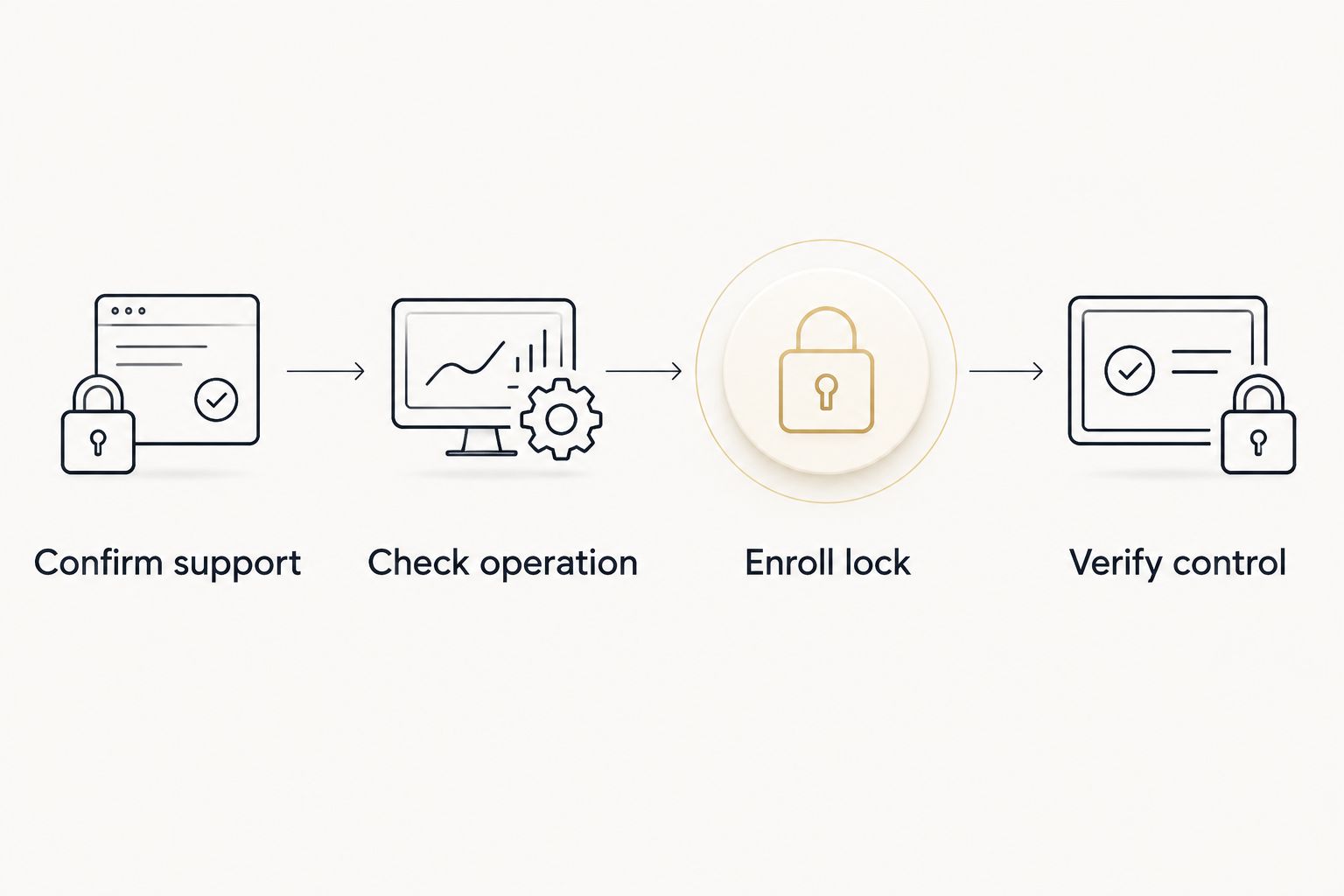
The essential sequence is straightforward: confirm support, check physical operation, enroll the lock, and verify control. Skipping the physical check makes a network problem harder to distinguish from a door problem.
Verify control before closing out setup
- With the door open, send a lock command through the supported Vivint control interface. Watch the bolt move rather than relying only on the displayed status.
- Send an unlock command and confirm that the bolt retracts normally.
- Check that the system’s reported state matches the physical lock after each operation.
- Remain inside, close the door, and repeat the lock and unlock checks. Stop if the motor strains or the bolt catches.
- Test any keypad credential you intend to keep using. Confirm that authorized users have the access you intended before removing an older credential.
Expected result: Commands operate the correct door, displayed status matches the bolt position, and authorized entry works with the door closed.
If you want control while away from home, test that separately through the supported app connection. Successful control at the panel does not, by itself, verify every remote-account function.
Reconnect an existing lock or replace it
Reconnecting a previously enrolled lock is not the same job as adding a new replacement. Identify the situation before deleting anything.
| Workflow | Best for | Advantage | Limitation |
|---|---|---|---|
| Reconnect the existing lock | A previously working lock that has stopped communicating | Preserves the opportunity to diagnose without immediately erasing settings | The cause still needs checking; reenrollment is not always the right fix |
| Enroll a replacement lock | A different, confirmed-compatible lock replacing the old hardware | Establishes the new device as the intended door control | Existing users and automations need verification rather than assumed transfer |
For a communication failure, check batteries and physical operation first, then follow Vivint’s troubleshooting instructions. Ask whether the device should remain enrolled while the connection is investigated.
For a replacement, document the old device’s name and any associated actions before removing it. Enroll and test the replacement, then review users, notifications, and supported automations. A matching device name does not prove that the replacement inherited the old lock’s settings.
Troubleshooting the connection
The lock never appears during enrollment
Recheck the exact model and confirm that the panel is in its authorized enrollment process. Follow the manufacturer’s timing and button instructions. If the lock was previously connected elsewhere, ask whether a documented exclusion procedure is required.
Do not repeatedly factory-reset the lock without understanding what the reset deletes.
The keypad works, but Vivint control fails
Local keypad operation confirms only that the lock can respond locally. Check whether Vivint shows the device as connected, whether your account has permission to control it, and whether enrollment actually completed. Give Vivint the exact symptoms rather than describing the lock as entirely broken.
The lock works open but jams closed
Investigate door alignment and bolt clearance. The contrast between open-door and closed-door operation points to a physical condition that pairing will not fix. Avoid repeatedly driving the motor against resistance.
The displayed state does not match the bolt
Observe the physical bolt, stop using automations that depend on an accurate lock state, and follow the manufacturer’s calibration instructions if applicable. Ask Vivint to investigate communication or status reporting before trusting remote confirmation.
A reset removed codes or settings
Use the model’s documentation to identify what was erased. Restore authorized access through the supported process and test each intended entry method. Do not assume that adding the device back to Vivint also restores every previous credential or automation.
Customize your workflow without weakening entry security
Start with manual control and accurate status reporting. Add notifications or automations only after the basic connection works and Vivint confirms that your system supports the function.
Review who can unlock the door remotely, who can change users, and who receives alerts. Give each person only the access needed. Test a proposed automation while someone remains inside, and verify what happens when its conditions are not met.
Keep physical key access in the review as well. Connecting a lock does not invalidate an old mechanical key. After a move or ownership change, consider the separate question of whether to rekey the new home.
GO Locksmith is a mobile locksmith option for homeowners needing mechanical lock repair, replacement, or rekeying. Direct Vivint enrollment and account questions to Vivint; do not treat mechanical locksmith service as confirmation of security-system integration support.
FAQ
Can I connect any smart lock to my Vivint security system?
No. Confirm the exact lock model with Vivint before attempting enrollment. A Wi-Fi, Bluetooth, or Z-Wave label alone does not establish support for your panel and account.
Do I pair the lock with my phone or with Vivint?
Follow the enrollment path specified for the supported lock and Vivint panel. Pairing a lock with its own phone app does not automatically add it to Vivint.
Do I need an installer code to add a smart lock to Vivint?
Ask Vivint which permissions your panel requires for device enrollment. If the process requires restricted access, have Vivint handle it rather than trying unofficial installer codes.
Should I factory-reset my lock before connecting it?
Do not factory-reset the lock unless the applicable instructions call for it. A previously connected Z-Wave lock can require exclusion, which is different from a factory reset and has its own documented procedure.
Why does my smart lock connect but fail to lock the door?
Check whether the bolt moves normally with the door open and binds when the door is closed. That pattern points to a physical alignment or clearance problem rather than a pairing fix.
Will my existing door codes transfer to Vivint?
Do not assume existing codes will transfer or remain unchanged. Check how your supported lock and Vivint setup manage credentials, then test each authorized user's access.
Can GO Locksmith help with a lock that sticks after setup?
GO Locksmith provides confirmed residential lock repair, replacement, and rekey services. Describe the mechanical symptoms when requesting service; direct Vivint enrollment, compatibility, and account questions to Vivint.
One last thing
A successful unlock test does not prove that the door will lock correctly. Retraction and extension are different movements, and the strike opening matters when the bolt extends. Finish with a closed-door locking test while you remain safely inside.
For a binding deadbolt or a separate mechanical lock concern, call GO Locksmith at (239) 412-1101 to discuss the job and check current availability. Service hours are Sunday–Thursday, 7:00 AM–11:00 PM; Friday, 7:00 AM–5:00 PM; Saturday closed.